
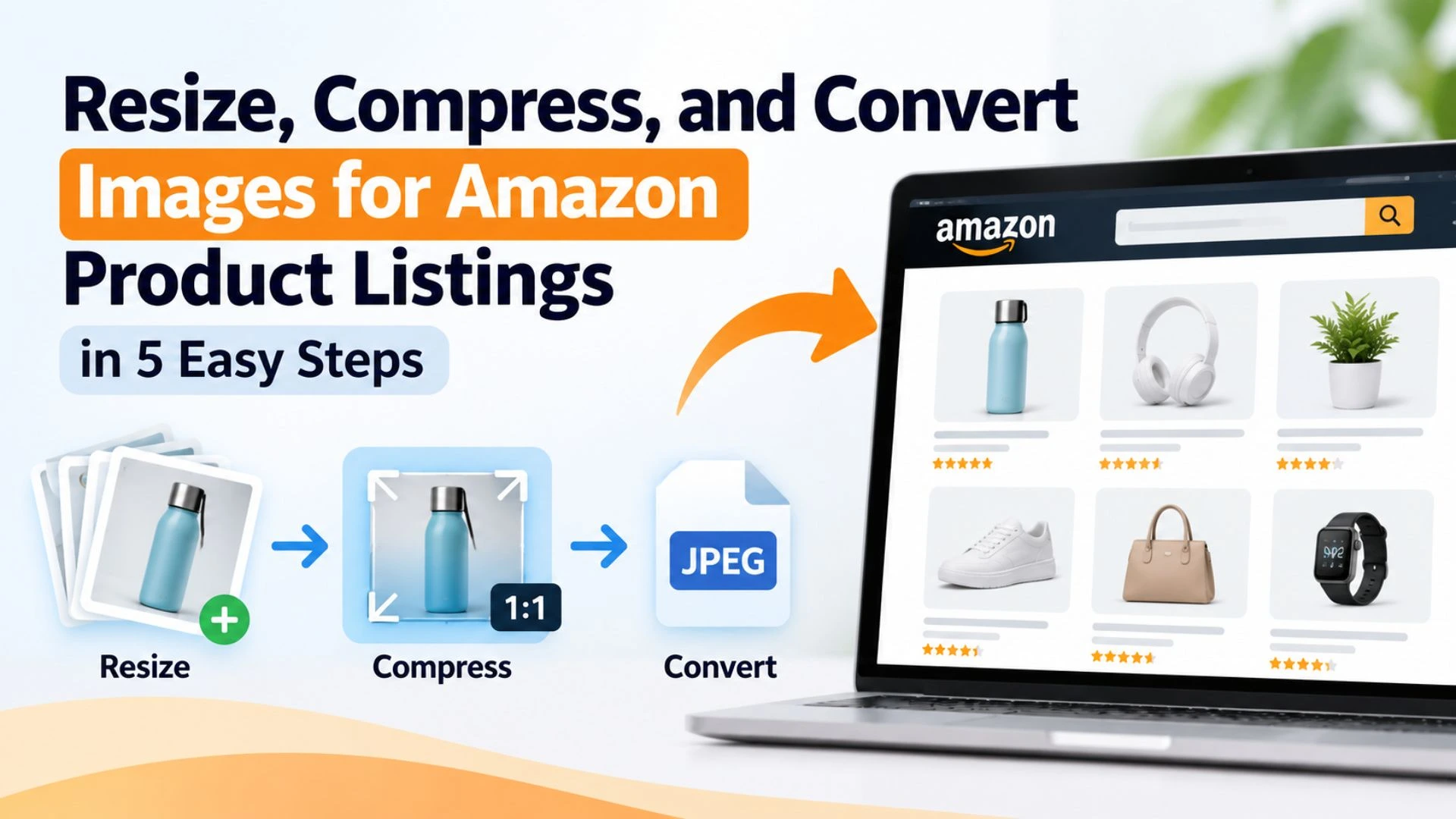
Guide for Optimizing Images for Amazon Product Listing: Are you new to selling on Amazon and unsure how to prepare your product images for listing? Instead of wasting time second-guessing image sizes, resolutions, and formats, follow this practical guide to get everything right.
In this post we will guide you how to choose the right image dimensions, resolution, and aspect ratio to meet Amazon’s requirements while keeping your product images sharp, clear, and professional. You’ll also learn how to optimize image file sizes for faster loading without compromising visual quality.
Choose the Right Image Aspect Ratio
Choosing the right image aspect ratio can be confusing when uploading product photos to an e-commerce platform. You may notice that many Amazon listings use square (1:1) images, while others feature portrait images with 2:3 or 3:4 aspect ratios.
Although portrait images can work well for certain products and categories, you don’t need to overcomplicate your decision when starting out. I recommend using a square (1:1) aspect ratio for your product images. It provides a consistent, professional look across your product listings and is a practical starting point for most sellers.
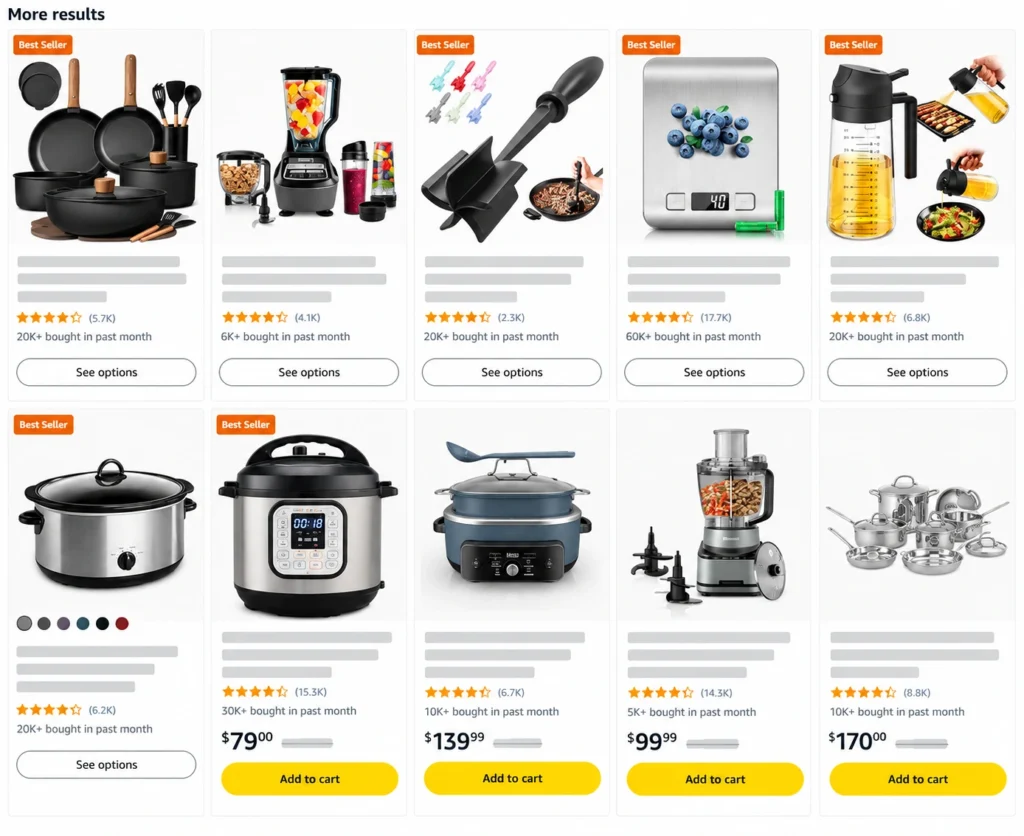
However, always check Amazon’s current image requirements for your specific product category before uploading your images.
Here are a few reasons why square images are recommended for Amazon product listings:
- Consistent Product Grid: Square product images create a consistent look across your product listings. Images with different aspect ratios may require extra cropping and adjustments to fit neatly within the same frame.
- Easier Product Positioning: A square canvas makes it easier to position your product consistently within the image, giving your listings a clean and professional appearance.
- Simpler Catalog Management: Standardizing image dimensions simplifies product image preparation and maintenance, especially when managing hundreds of products.
Choosing square (1:1) images for your e-commerce product listings offers several advantages, including a uniform and consistent product grid. Although some categories, particularly fashion, may benefit from portrait images, square images are a practical choice for most product listings.
Choose the Right Image Dimensions and Resolution
Amazon product images must meet the applicable minimum and maximum dimension requirements. For Amazon.com, the general image requirements specify 500 to 10,000 pixels on the longest side, while images with at least 1,000 pixels on the longest side can support the zoom feature.
A good starting point is to use 1000 × 1000 px product images for products that don’t require fine visual details. If your product depends heavily on image quality, such as items with intricate designs or textures, consider using 2000 × 2000 px images for greater detail. Choose dimensions that keep your product images clear while maintaining a reasonable file size for efficient loading.
How to Resize Image for Amazon Product Listing
Here’s the quickest way to resize and compress your product images in a few easy steps. IMGResizer requires no login or signup and offers unlimited usage, making it convenient to process even thousands of images over time.
- Open Tool: Here we are using Image Resizer by IMGResizer because of unlimited use and no logins or signups
- Add your images: Upload or select the product images you want to process.
- Adjust the settings: Set your desired dimensions, aspect ratio, DPI, output format, and other available options.
- Process your images: Click Process Image to resize and compress your selected images.
- Download and review: Download the processed images and check that they remain sharp, clear, and suitable for your Amazon listings. Also, verify that their file sizes are reasonable and that no unwanted cropping or distortion has occurred.
Choose the Right Image Format.
Before uploading product images to Amazon, choose a supported file format that preserves image quality while keeping file sizes manageable. Amazon accepts JPEG, PNG, TIFF, and non-animated GIF formats, with JPEG being the preferred option. For most product listings, JPEG is a practical choice because it offers a good balance between visual quality and file size. However, the final file size also depends on the image dimensions and compression settings.
If you capture product photos using a modern smartphone, they may be saved in formats such as HEIC/HEIF, which Amazon may not accept for your listing. In such cases, you can convert them to JPEG, a widely supported and practical format for product images.
Converting images one by one can be time-consuming, especially when preparing hundreds of product photos. A bulk image converter simplifies this process by allowing you to convert multiple images in a single batch. Some tools also offer generous usage limits without requiring registration, making them useful for sellers managing large product catalogs.
How to convert images in bulk for Amazon Product Listing
Here’s one of the easiest ways to convert multiple images in just a few clicks. IMGResizer lets you convert up to 60 images per batch, making it easier to prepare large numbers of product images. Just follow these simple steps.
- Open the Tool: Visit the Bulk Image Converter.
- Select Your Images: Upload up to 60 images in a single batch.
- Choose the Output Format: Select JPEG, Amazon’s preferred image format for most product listings.
- Convert Your Images: Click Convert to process the selected files.
- Download and Repeat: Download all converted images in one click, then repeat the process with the next batch of up to 60 images.
Optimize Image Size
Many sellers assume that larger, high-resolution images always deliver better results. However, image quality isn’t determined by file size alone. Large image files can take longer to load, potentially affecting the shopping experience and discouraging customers from exploring your product page.
For e-commerce websites, including Amazon listings, the goal is to maintain sharp, high-quality images while keeping file sizes small enough for fast loading. This is where image optimization comes in.
By compressing your images properly, you can reduce their file sizes without noticeably compromising visual quality. Several online tools make this process easy, including paid options with advanced features and batch processing capabilities.
If you’re just starting out and don’t want to invest in paid tools, free online image compressors can also be a good option. However, choose carefully, as some tools may reduce file sizes at the expense of image clarity.
To help you get started, we’ve compiled a list of online image compressor tools that offer useful optimization features, including batch processing, to help you prepare product images more efficiently.
| Tools | Processing | Key Features | Free Limits | Best For |
|---|---|---|---|---|
| IMGResizer | Client-side | Private processing, compression, and resizing | Up to 5 images per batch & unlimited usage without login | Privacy-focused image optimization |
| I love IMG. | Server-based | Compression, resizing, cropping, and format conversion | Free-plan limits apply. | Everyday image editing |
| TinyJPG | Server-based | JPEG, PNG, and WebP compression | Up to 20 images per batch, 5 MB per image | Quick image compression |
These tools are useful for compressing images in bulk, but server-based tools may impose limits on free usage. IMGResizer.io offers browser-based image processing without requiring an account, making it a convenient choice for users who want privacy and flexibility without usage restrictions.
