
50+ Free Image Tools
Resize, Compress & Convert Images Online
Free online image tools to resize, compress, convert, and edit images. Adjust image dimensions, reduce file sizes, and optimize formats quickly and easily in one place.
Drop, paste, or browse your image.
Supports JPG, PNG, WebP, AVIF, HEIC/HEIF, GIF, BMP, TIFF, SVG, PDF, and ICO. Processed locally in your browser.
Your privacy is our priority. Every image is processed directly in your browser, never uploaded to our servers. Free, Fast, and Easy-to-use. No Watermarks. No Usage Limits.
Explore Image Tools
Quick access to image compression, resizing, conversion and enhancement tools.
Browse all toolsWhy Choose IMGResizer.io?
Fast Image Processing
Resize, compress, and convert images directly in your browser. Processing time depends on your image size, selected operation, browser, and device performance.
Privacy-Focused Processing
Process images directly in your browser with tools that support local processing. Your files stay on your device when server uploads are not required.
Free Online Tools
Access a range of image editing tools without installing software or creating an account. Available features and usage limits may vary depending on the tool.
Easy to Use
Select your image, choose the required settings, and let the tool handle the processing. Our simple interface makes everyday image editing tasks easier.
Multiple Image Formats
Work with popular formats such as JPG, PNG, WebP, AVIF, GIF, BMP, TIFF, SVG, and ICO. Format support depends on the selected tool and browser.
Image Quality Control
Resize, compress, and convert images with settings suited to your needs. Output quality and file size depend on the original image, format, and selected settings.
How to Use Image Tools
Learn to convert, crop, resize and optimize images easily.
Bulk Image Converter: Convert Multiple Images Online
Learn how to convert multiple JPG, PNG, WebP and other images at once using IMG Engine’s fast bulk image converter.
How to Crop an Image Online for Free
Crop photos online for free with IMG Engine. Select the area you need and download a perfectly cropped image in seconds.
Latest Article
Helpful guides, practical tips, and step-by-step tutorials for working with images.
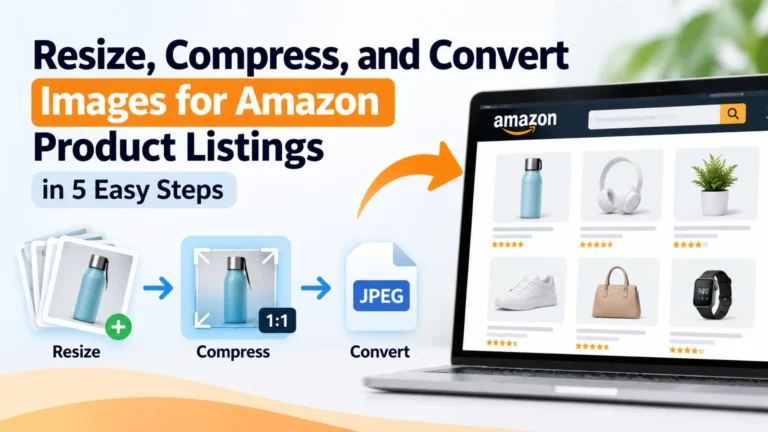
Resize, Compress, and Convert Images for Amazon Product Listings in 5 Easy Steps
Learn how to resize, compress, and convert images for your Amazon product listing in 5 easy steps while maintaining image…
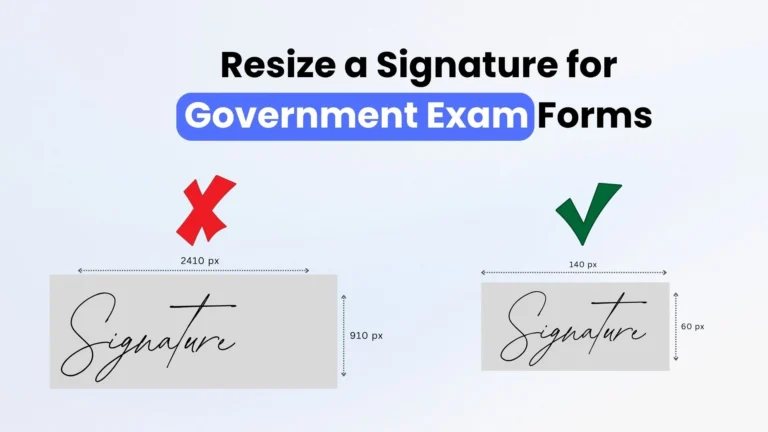
How to Resize a Signature for Government Exam Forms
Learn how to resize a signature for government exam forms, meet image size requirements, compress a signature to the required…
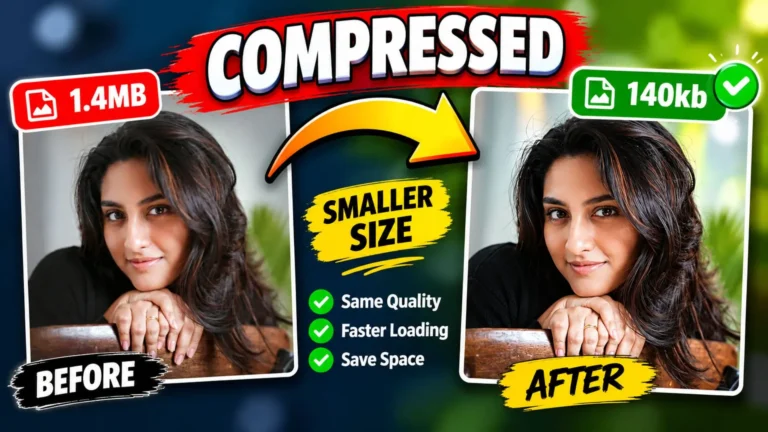
How to Compress Image Without Losing Quality: A Complete Guide
Compress image without losing quality using proven techniques. Learn the right settings, best formats, and expert tips to reduce file…
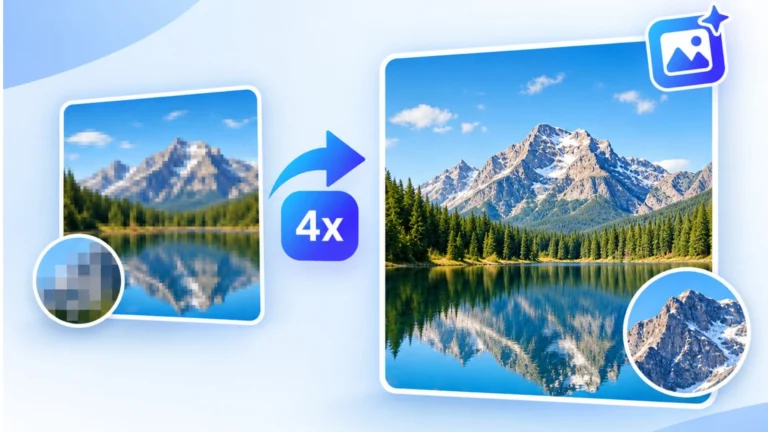
How to Upscale an Image Without Losing Quality: Best Free Image Upscaler
Try a Free Image Upscaler to upscale images with better clarity and detail. Discover AI Image Upscaler features and find…
Why Is My PDF File So Large? 9 Common Causes and How to Fix Them
Why are PDF files so large? Learn the common causes of large PDF sizes, including images, scans, fonts, graphics, resolution,…
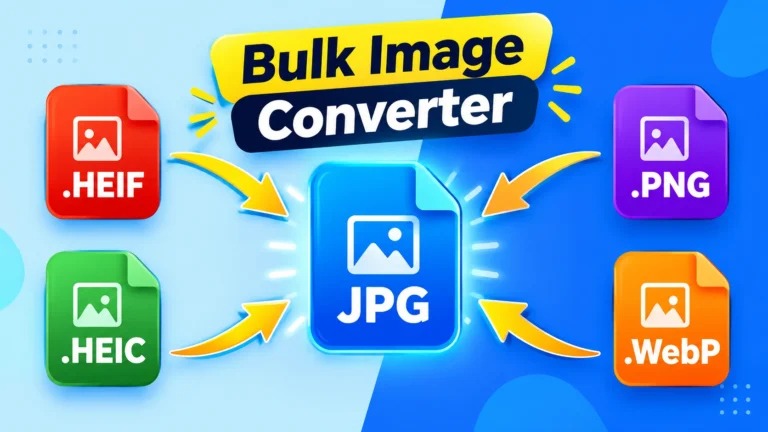
How to Convert Up to 60 Images in One Batch
Images won't open, are too big to send, or get rejected in forms? Discover the best free bulk image converters…
GOT QUESTIONS?
Frequently asked questions.
Everything you need to know about resizing, compressing and converting images online.
Is this image resizer really free?
Yes. IMGResizer.io is free to use, with no account registration or credit card required. You can resize, compress, and convert images without watermarks. Use the available tools as often as you need, subject to any applicable technical limitations.
Are my images uploaded to your server?
Images are processed directly in your browser and are not uploaded to our servers during processing. Your files remain on your device, except where a feature explicitly requires external processing. We recommend avoiding sensitive images on any online tool unless you have verified how it handles your data.
Can I resize an image to an exact file size like 20KB or 50KB?
Yes. Enter your target size in the “Target Size (KB)” field and the tool will automatically compress the image to fit that limit — perfect for government exam forms that require specific file sizes.
How do I resize an image for a passport or exam form?
Upload your photo, enter the required width and height in pixels, set the target file size in KB, and click Process Image. The tool will resize and compress your photo to match the exact requirements of SSC, DSSSB, UPSC, and other exam portals.
Does resizing reduce image quality?
The tool uses high-quality canvas resampling (browser-native imageSmoothingQuality: “high”) and smart compression to keep your image as clear as possible at the target size. On JPG photos, resizing to roughly 600×600 px and compressing to ~20 KB usually stays visually clean for form uploads. Some softening is expected at very small sizes or on text-heavy images, because 20 KB is a very small file size and compression has to be aggressive.
What is the difference between resizing and compressing an image?
Resizing changes the actual pixel dimensions of an image. So if a photo is 1920 by 1080 pixels and you resize it to 800 by 600, you are literally changing how many pixels make up the picture. Compressing, on the other hand, keeps the dimensions the same but reduces how much space the file takes up on your device. Most people actually need both. You resize first so the image fits the exact size a website or form requires, then compress it so the file lands under a limit like 50KB or 100KB.
What does DPI mean and does it matter for online images?
DPI stands for dots per inch. It tells you how many pixels get printed into one inch of physical paper. If you are printing a photo, DPI matters a lot. A 300 DPI image looks sharp on paper while a 72 DPI image looks pixelated. But here is the thing. For anything you upload online, DPI barely matters. Screens do not print anything, they just show pixels. What actually matters on the web is the pixel width and height and the total file size. So if a website says “300 DPI,” they almost always mean a high quality image, not a specific print measurement.
What is the best image format for websites?
It depends on what the image is. For photographs, JPG is still the safest choice because it is small and works everywhere. For logos, icons, and anything with a transparent background, PNG is the better pick. If you want your site to load faster and you do not mind a slightly newer format, WebP and AVIF can cut file sizes by 25 to 50 percent compared to JPG without any visible quality loss. Pretty much every modern browser supports both now. Just avoid BMP and TIFF for the web. They are huge and unnecessary.
Why does my photo look blurry after I upload it somewhere?
This happens for a few reasons. The most common one is that the image you uploaded was already too small, and the website stretched it to fit a larger space. Another common cause is that the site re compressed your file to save bandwidth, which can soften fine details. And sometimes the issue is that your JPG has been compressed too many times already, so each new upload makes it look worse. To avoid this, always start with a high quality original, keep the pixel dimensions at least twice the size you actually need, and use PNG instead of JPG when the image has sharp text or clean edges.
How do I reduce an image to a specific file size like 20KB or 50KB?
You usually need two steps to hit an exact number. First, reduce the pixel dimensions. If a form asks for 20KB, it almost always also asks for a specific width and height. Second, increase the compression a little at a time until the file size drops under the limit. Here is a small tip that saves a lot of time. Reducing the dimensions usually has more effect on file size than lowering quality does. So try shrinking the width and height first before you push the quality slider down too far.
What is the difference between lossy and lossless compression?
Lossy compression throws away some image data to make the file much smaller. JPG is the most common example. If you use it gently, the loss is invisible. If you push it too hard, you start seeing blur, weird color patches, or blocky areas. Lossless compression shrinks the file without throwing anything away. PNG is the classic example. The image stays pixel for pixel identical to the original. The trade off is that lossless files are usually bigger. So use lossy for photos and lossless for logos, screenshots, or anything where accuracy really matters.
Should I resize an image before or after editing it?
Always edit first and resize last. Every crop, color adjustment, or sharpening step should happen on the original full resolution file. The reason is simple. Once you resize an image, you have fewer pixels to work with. If you try to sharpen or color correct after that, the edits have less data to work with, which can make sharpening look harsh and color shifts look uneven. Keep your original file untouched, do all your editing on it, and only resize when the image is truly finished.
Why do some images open on my phone but not on my computer?
This usually comes down to file format support. iPhones love to save photos as HEIC, which opens fine on iOS but often fails on Windows or older versions of Mac without extra software. Modern browsers sometimes use AVIF, which many desktop apps still cannot read. The easiest fix is to convert those files to JPG or PNG, which open on almost anything. Sometimes the reverse happens too. A file that opens on your computer might not open on your phone because it is a very large TIFF or BMP, and your phone simply does not have the software to decode it.
Built around practical image problems.
IMGResizer.io was created to make common image tasks less frustrating—from meeting file-size limits on application forms to preparing lighter images for websites. We aim to keep the tools straightforward and explain their limits clearly.