
Are you struggling resize an image to exact width and height. Need an image to fit an exact size, such as 800 × 600 pixels? It sounds simple enough: enter the width, enter the height, and you’re done. In practice, that’s where problems can start.
If the original image has a different shape, forcing it into a new width and height can stretch or squash the subject. And if you’re making a small image much larger, the result may look soft or pixelated.
The good news is that getting exact image dimensions doesn’t have to be complicated. You can resize an image online, crop it when the proportions don’t match, and choose the output settings you need in the same workflow.
In this guide, you’ll learn how image dimensions work, when you should crop before resizing, how to resize an image while keeping good visual quality, and how dimensions differ from file size.
What Does It Mean to Resize an Image With Dimensions?
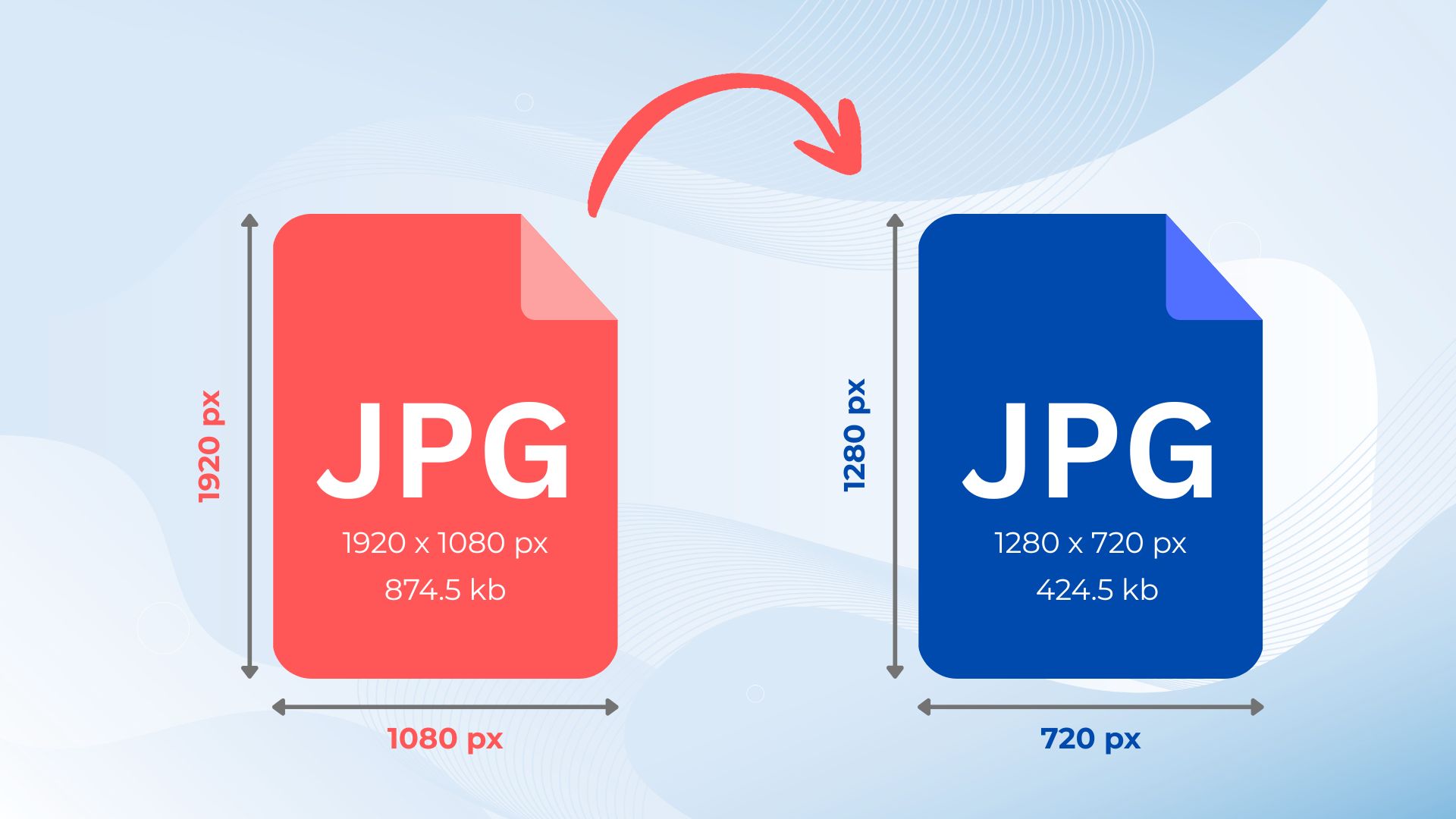
Image dimensions are simply the number of pixels across and down an image. When you resize an image, you’re changing those pixel dimensions.
For example, you might change:
- 1920 × 1080 pixels to 1280 × 720 pixels
- 1600 × 1200 pixels to 800 × 600 pixels
- 1200 × 1200 pixels to 500 × 500 pixels
The first number is the width, while the second is the height.
So, if a website asks for an image that is 1000 × 800 pixels, the required settings are:
- Width: 1000 pixels
- Height: 800 pixels
This is different from changing the displayed size of an image with CSS or a browser. Those methods can change how large the image appears, but they don’t necessarily change the actual pixel dimensions stored in the image file.
How to Resize an Image to Exact Width and Height Online
You can resize an image to custom dimensions online with imgresizer.io. Upload the image, set the dimensions you need, crop it when necessary, and process the result.
Add Your Image
Select the image you want to resize. If you have the original file available, use that rather than a copy that has already been compressed or resized.
Enter the Required Dimensions
Enter the target width and height in pixels, such as 800 px by 600 px. Use the dimensions specified by the website, app, document, or other destination where the image will be used.
Crop When the Ratio Does Not Match
If the original image has different proportions from your target dimensions, use the Crop option to remove the unwanted area and create the required ratio. This helps prevent the subject from being stretched or squashed.
Set a File Size Limit if Needed
If the destination has a maximum file-size requirement, enter the target size in KB or MB. If there is no file-size restriction, you can leave this option unused.
Choose the Output Format
Choose the output format when you need a particular file type. JPG is commonly used for photographs, while PNG can be useful when transparency is required.
Process the Image
Click Process Image to apply your settings. The resulting image will use the dimensions and other options you selected.
Resize vs. Crop: What’s the Difference?
Resizing and cropping are related, but they aren’t the same operation. Resizing changes the dimensions of the image. The whole image is scaled to a different pixel size. Cropping removes part of the image. It changes what is included in the frame rather than simply making the existing image larger or smaller.
This difference matters when the required dimensions have a different aspect ratio from your original image. For example, imagine you have a 1600 × 1200 image and need an 800 × 600 image. Both sizes use the same 4:3 ratio, so you can scale the image down without changing its shape.
But if the required size has a different ratio, such as a square image, simply changing both numbers independently could distort the image. In that situation, cropping first can give you a better result.
How to Resize an Image Without Losing Quality
“Resize image without losing quality” sounds straightforward, but there is an important limitation: resizing changes pixel data, so completely avoiding quality loss isn’t always possible.
The amount of visible quality change depends on what you’re doing. Reducing a large image usually works well because there are plenty of source pixels available. Enlarging a small image is more difficult because the software has to create pixels that weren’t captured in the original.
Use the Original Image When Possible
If you have the original full-resolution image, use it instead of a version that has already been downloaded from a social network, messaging app, or another compressed source.
A resized copy cannot recover detail that was removed during an earlier compression or resize.
Be Careful With Large Upscaling
Making a small image much larger is where quality problems become more noticeable.
For instance, taking a 400 × 300 image and turning it into 4000 × 3000 pixels doesn’t bring back fine details from the original. The output may simply look softer or more pixelated.
Keep the Aspect Ratio When You Don’t Need to Crop
If you want the entire image to remain visible, keeping its original aspect ratio is usually the safest approach.
When the required width and height use a different ratio, decide whether cropping is acceptable. Removing a little from the edges is generally preferable to stretching the subject to fill the new shape.
Keep the Original for Future Edits
It’s also a good idea to keep the original image and make resized copies from it. That way, if you later need a different size, you aren’t repeatedly resizing the same compressed file.
This is particularly useful with lossy formats, where repeated saving and compression can gradually affect image quality.
Can You Resize an Image Without Quality Loss Online?
You can resize an image online and end up with a result that looks almost the same as the original, especially when you’re reducing its dimensions from a good-quality source.
However, there is no universal setting that guarantees identical quality for every image. The result depends on the source, the target size, the direction of the resize, the format, compression, and any cropping you perform.
Before resizing, consider these factors:
- Original image resolution
- Required width and height
- Whether you are reducing or enlarging the image
- Output image format
- Compression settings
- Amount of cropping
For ordinary size reductions, starting with a good original and using sensible output settings is usually enough to produce a clean-looking result.
Why Exact Image Dimensions Matter
Sometimes an image simply needs to be a specific size. A website may have a fixed image area, an online form may require particular dimensions, or a platform may publish recommended sizes for thumbnails and profile pictures.
Some common requirements might look like:
- 800 × 600 pixels
- 1080 × 1080 pixels
- 1280 × 720 pixels
- A specific width and height for a product image
- Equal width and height for a profile image
In these cases, changing only the displayed size isn’t enough. The actual pixel dimensions of the file need to meet the requirement.
That’s why exact image resizing is useful for websites, social media, e-commerce listings, documents, forms, and other digital projects where image specifications matter.
Resize, Crop, Compress, and Convert an Image in One Workflow
If you’re already working on an image, it’s convenient to handle related changes without moving the file between several different tools.
With imgresizer.io, the workflow can include the main adjustments you may need:
- Add the image.
- Enter the required width and height.
- Crop the image if the aspect ratio needs to change.
- Set a target file size when there is an upload limit.
- Select the output format when necessary.
- Process the image and use the resulting file.
This can save time when a single image needs more than one adjustment. Instead of resizing the image in one place, cropping it somewhere else, and then changing the output settings separately, you can handle those steps together.
Example: Resize an Image to 800 × 600 Pixels
Let’s say you have a photograph that is 2400 × 1600 pixels, but the website where you want to upload it requires 800 × 600 pixels.
The two images don’t have the same aspect ratio. The original is 3:2, while 800 × 600 is 4:3. So simply forcing the original into 800 × 600 could change the shape of the subject.
A better approach is to adjust the crop first:
- Add the 2400 × 1600 image.
- Set the target dimensions to 800 × 600 pixels.
- Use the Crop option if the original ratio doesn’t match the target.
- Position the crop so the important part of the photograph stays in the frame.
- Set a file-size limit if the destination requires one.
- Choose an output format if necessary.
- Click Process Image.
The final file will have the requested 800 × 600 pixel dimensions, with the crop adjusted to suit that shape.
The important part isn’t the particular 800 × 600 example. The same idea applies whenever the dimensions you’re given don’t match the proportions of the original image.
What Is the Best Image Size for a Website?
There isn’t one image size that is best for every website.
The right dimensions depend on where the image will appear and what the website or platform expects. A thumbnail, product image, banner, and profile picture can all have completely different requirements.
If the website gives you an exact width and height, use those numbers. That’s more useful than following a generic recommendation that may not fit the particular image slot.
Also keep image dimensions and file size separate in your mind. An image can be exactly 800 × 600 pixels and still be too large in megabytes for a website’s upload limit.
Frequently Asked Questions
How do I resize an image to exact width and height?
Upload the image to an image resizer, enter the required width and height in pixels, and process it. If those dimensions have a different aspect ratio from the original, crop the image first so it doesn’t become stretched or squashed.
How can I resize an image without losing quality?
Start with the highest-quality original you have and avoid enlarging a small image by a very large amount. If the target dimensions use a different aspect ratio, crop instead of forcing the image into the new shape.
Can I resize an image without changing its aspect ratio?
Yes. Keep the same width-to-height ratio when changing the dimensions. If you need an exact size with a different ratio, you’ll generally need to crop some of the original image.
How do I resize an image by width and height online?
Use an online image resizer that supports custom dimensions. Upload your image, enter the desired width and height, adjust the crop if required, and process the image.
Can I resize and crop an image in the same workflow?
Yes. Cropping changes which part of the image is visible, while resizing changes its pixel dimensions. Using both together is useful when the required dimensions have a different aspect ratio from the original.
Does resizing an image reduce its quality?
It can. Resizing changes the image’s pixel data. Reducing a large image often gives good results, while significantly enlarging a small image can make blur or pixelation more noticeable.
What is the difference between image dimensions and file size?
Dimensions describe the number of pixels in an image, such as 1200 × 800 pixels. File size describes how much storage the file uses, such as 250 KB or 2 MB. They are related, but changing the dimensions doesn’t automatically determine the final file size.
Final Thoughts
Resizing an image to an exact width and height is usually straightforward once you know whether the image needs to be cropped first.
Start with the best original you have, check the required dimensions, and keep the aspect ratio in mind. If the target shape is different from the original, crop the image rather than stretching it to fill the space.
If the destination also has a file-size limit or requires a particular format, take care of those settings before processing the image.
For occasional edits or regular image work, imgresizer.io gives you a way to handle resizing and related image adjustments in one place.

1 thought on “How to Resize an Image to Exact Width and Height Without Losing Quality”