
Have you ever noticed, some of your PDF File so large to share or upload, Or perhaps a website rejected your document because it exceeded the upload limit.
PDFs are designed to preserve the appearance of documents across different devices and operating systems. However, certain elements inside a PDF can dramatically increase its file size. Understanding these causes can help you create smaller PDFs, share them more easily, and avoid upload restrictions.
In this guide, we’ll explain the 9 most common reasons PDF files become oversized and show you practical ways to reduce PDF file size without sacrificing readability.
1. High Quality Images
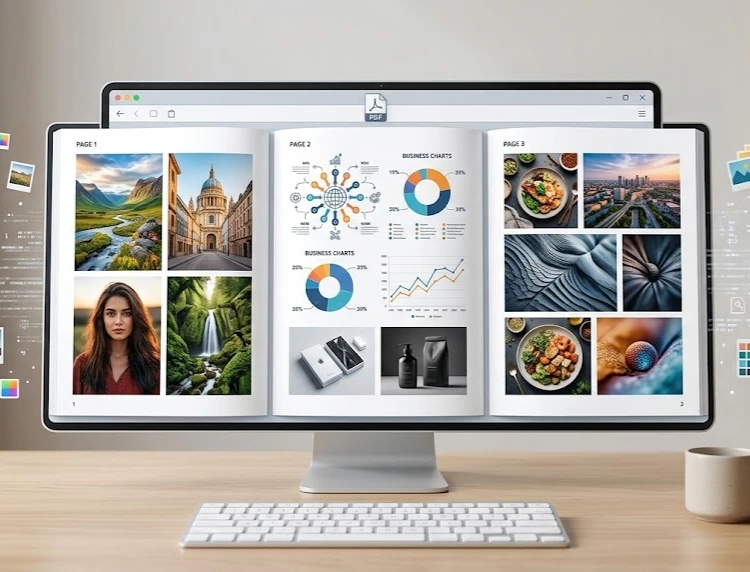
One of the most common reasons for a large PDF file size is using high-quality images. For example, a document containing several photos taken directly from a modern smartphone can include images that are several megabytes each. When these large images are added to a PDF without proper optimization, the file size can increase very quickly.
How to Fix it?
- Resize images before creating the PDF.
- Use compressed image formats when possible.
- Reduce image resolution if the document is intended for on-screen viewing only.
2. Scanned Documents
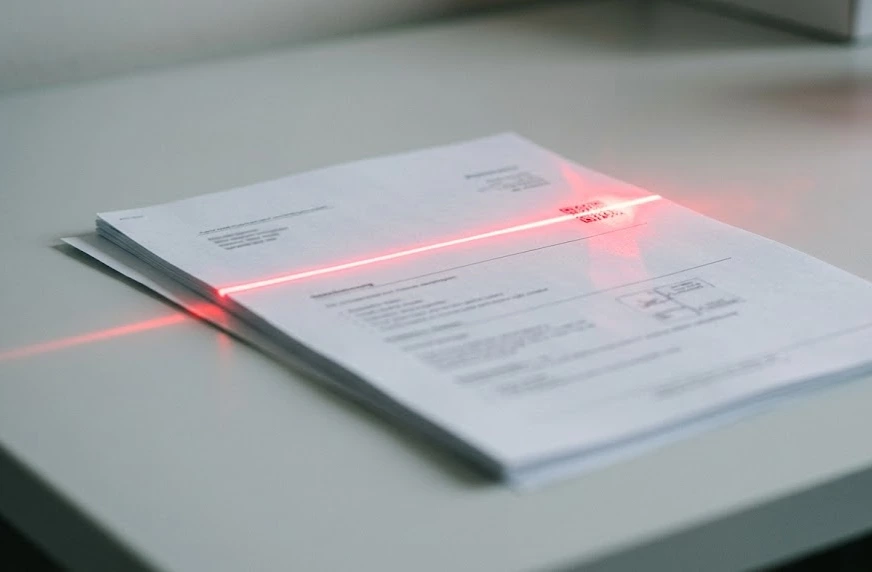
Scanned PDFs are often much larger than PDFs created digitally. That’s because when you scan a document, each page is basically saved as an image. So, a 50-page scanned document can easily reach tens or even hundreds of megabytes, especially if it was scanned at a high resolution.
How to Fix it?
- Scan at an appropriate resolution (usually 150–300 DPI for most documents).
- Use grayscale instead of color when color is not necessary.
- Compress the scanned PDF after creation.
3. Embedded Fonts
PDF files often embed fonts so the document looks the same on different devices and operating systems. This is especially useful when you’re using custom or less common fonts that may not be installed on someone else’s computer.
However, embedding multiple fonts, font families, and different styles can add extra data to the PDF. In larger or more complex documents, this can noticeably increase the overall file size. Sometimes, the same font may also be embedded more than once, making the file even larger than necessary.
How to Fix it?
- Use fewer font families.
- Avoid unnecessary font variations.
- Use font subsetting when available.
4. Excessive Image Quality
Many PDFs contain images that are much higher in quality than they actually need to be. For example, if you’re creating a PDF that will mainly be shared by email or viewed on a screen, you usually don’t need print-quality images at 300 DPI or higher. Those high-resolution images can add a lot of unnecessary data to the file without making much difference to how it looks on a typical screen. Reducing the image resolution to a more practical level can significantly reduce the PDF size while keeping the document looking clear.
How to Fix it?
- Reduce image quality to match the intended use.
- Optimize images before exporting the PDF.
- Use balanced compression settings.
5. Uncompressed Graphics and Objects
Some PDF creation tools also save graphics, diagrams, and other objects without properly optimizing them. While each element may seem small on its own, a document with lots of charts, shapes, illustrations, or vector graphics can accumulate a significant amount of extra data. Over time, all of these unoptimized elements can make the final PDF much larger than it actually needs to be.
How to Fix It?
- Export PDFs using optimized settings.
- Remove unused objects.
- Flatten complex layers when appropriate.
6. Large Number of Pages
Sometimes, the simple answer to “Why are PDF files so large?” is that the document just contains a lot of pages. Even when everything is properly optimized, adding more pages naturally means adding more text, images, graphics, and other content.
For example, a 5-page PDF and a 100-page PDF can’t realistically be expected to have the same file size. So, if your document is large because it contains a lot of content, some increase in file size is completely normal.
How to Fix It?
- Split large PDFs into smaller files if practical.
- Remove unnecessary pages.
- Compress the final document before sharing.
7. Color Scans Instead of Grayscale
Color images generally require much more storage space than grayscale or black-and-white images. This can make a noticeable difference when you’re creating a PDF from scanned documents.
For example, if you’re scanning a document that only contains text, there’s usually no need to scan every page in full color. Using grayscale or black-and-white mode can significantly reduce the amount of data stored for each page, which can help keep the final PDF much smaller while still keeping the text clear and readable.
How to Fix It
- Use grayscale scanning for text documents.
- Reserve color scanning for documents where color is important.
- Optimize existing PDFs using compression tools.
8. Hidden Metadata and Attachments
Some PDFs contain hidden information such as:
- Document history
- Comments
- Embedded files
- Form data
- Metadata
These elements can increase file size even though they are not immediately visible.
How to Fix It?
- Remove unnecessary metadata.
- Delete unused attachments.
- Save a cleaned version of the PDF.
9. Inefficient PDF Creation Settings
Not all PDF creation tools are equally efficient when it comes to file size. Some applications may generate larger PDFs because they prioritize maximum compatibility across different devices, PDF readers, and operating systems.
This can mean that the PDF includes extra data or uses less aggressive compression to make sure everything displays correctly everywhere. So, even if you create the same document using two different PDF tools, the final file sizes can sometimes be surprisingly different.
How to Fix It?
- Review export settings before saving.
- Choose optimized PDF output when available.
- Use a PDF compression tool to reduce unnecessary data.
Why Is My PDF File So Large Even After Saving It?
Many users are surprised when a PDF remains large even after editing or resaving it. This usually happens because the underlying images, scans, fonts, or embedded resources remain unchanged. Saving the document again does not automatically optimize those elements.
In such cases, a dedicated PDF compression tool can often reduce file size significantly while maintaining readability. How to Reduce PDF File Size
If your PDF is too large to upload, email, or share, try these steps:
- Compress images before creating the PDF.
- Use appropriate scan settings.
- Remove unnecessary pages.
- Delete unused metadata and attachments.
- Save using optimized PDF settings.
- Compress the finished PDF using a reliable PDF compression tool.
The best method depends on what’s causing the large file size in the first place.
Final Thoughts
If you’ve been wondering why are PDF files so large, the answer is usually one or more of the factors discussed above. High-resolution images, scanned pages, embedded fonts, color content, and inefficient export settings are among the most common causes.
Fortunately, most oversized PDFs can be reduced significantly with the right optimization techniques. By identifying the source of the problem and applying the appropriate fix, you can create smaller PDF files that are easier to upload, email, store, and share.
