
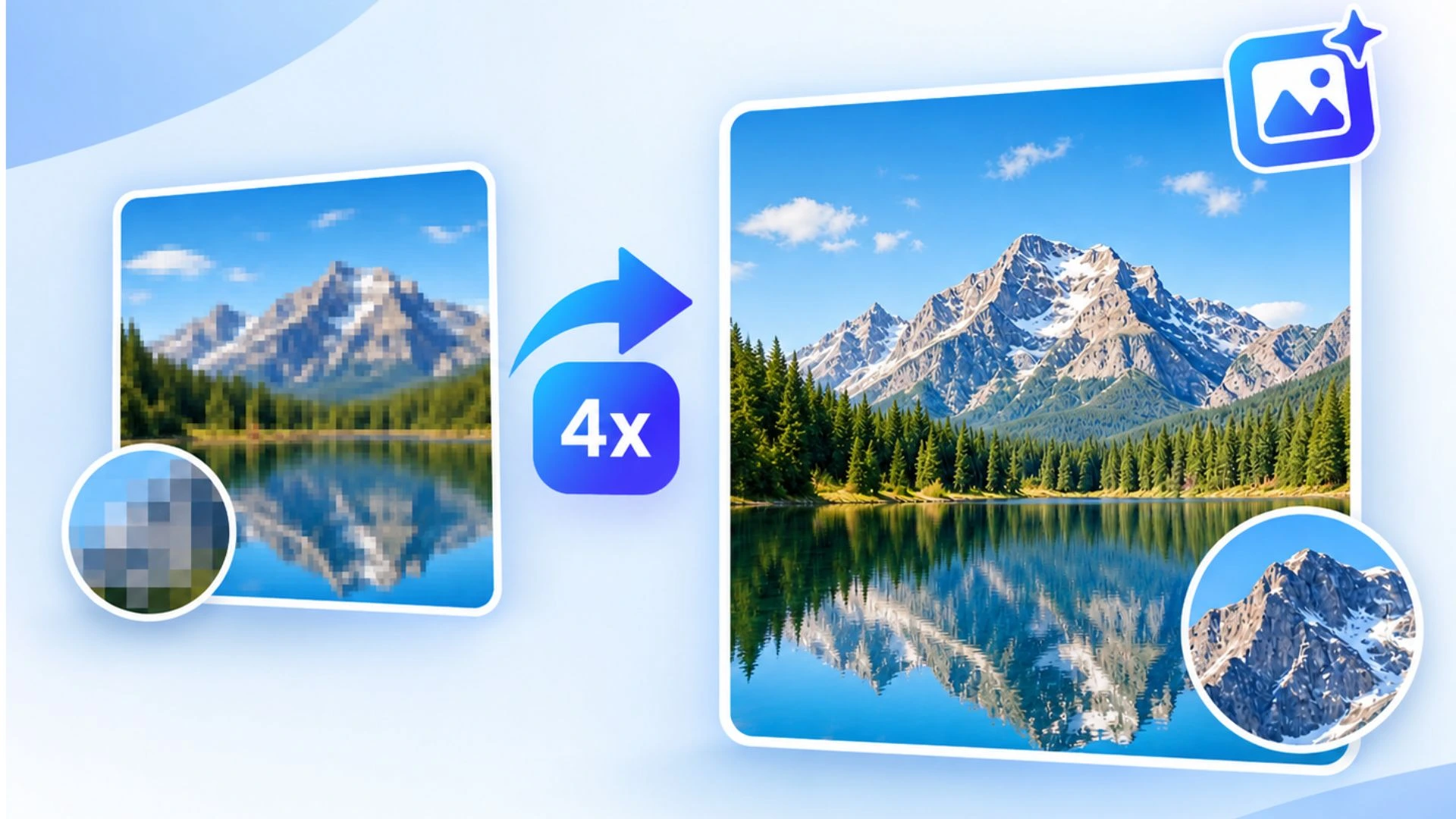
Upscaling an image is not simply about increasing its resolution or making it larger. A good Image Upscaler should enhance details, improve clarity, and preserve the original image as naturally as possible. This is where an AI Image Upscaler can make a significant difference by analyzing the image and intelligently generating additional detail during the upscaling process.
The problem is that many image upscaling tools come with usage limits, require a paid subscription, or offer only basic enlargement. Finding a genuinely useful Free Image Upscaler with unlimited usage and high-quality results can therefore be difficult.
If you want to try a Free Image Upscaler without being restricted by usage limits, the Free Image Upscaler by IMGResizer.io is worth considering. It combines upscaling with practical image-management features that can make the workflow easier. For example, you can rename images directly from the dashboard and include their resolution in the filename. These features are particularly useful when processing and organizing multiple upscaled images.
5 Reason Why Need to Upscale an Image
Here are 5 practical, real-world reasons people upscale images:
- Printing at larger sizes: Upscaling helps increase the pixel dimensions of an image so it can be printed larger—such as on posters, banners, brochures, photographs, or product packaging—without appearing excessively pixelated.
- Improving low-resolution photos: Old photos, compressed images, screenshots, or images downloaded from the web may have insufficient resolution. An AI Image Upscaler can enlarge them while attempting to reconstruct missing details and improve perceived sharpness.
- E-commerce and product photography: Online stores often need clear, high-resolution product images for product pages, catalogs, marketplaces, and zoom functionality. Upscaling can make smaller product photos more suitable for these uses.
- Social media and digital content: Creators may need larger images for social media posts, thumbnails, website banners, presentations, or advertisements. Upscaling can help when the original image is too small for the required dimensions.
- Cropping and recovering usable detail: Sometimes the subject occupies only a small portion of a photograph. After cropping, the remaining image may have too few pixels. Upscaling can increase its dimensions and make the cropped subject more usable for viewing, publishing, or design work.
However, simply increasing an image’s dimensions does not necessarily improve its quality. Traditional resizing can make an image larger while leaving it blurry, pixelated, or lacking in detail. A modern AI Image Upscaler takes a different approach by analyzing the existing pixels and using AI-based processing to estimate and reconstruct additional details. The quality of the result can vary significantly depending on the original image, the upscaling method, and the tool being used.
That’s why choosing the right Image Upscaler matters. Before using one, it’s worth looking at factors such as output quality, supported image formats, maximum resolution, processing speed, usage limits, and whether the tool adds unwanted artifacts or over-sharpens the image.
How to Upscale an Image Perfectly?
Follow these simple steps to upscale an image with maxium quality:
- Open Image Upscaler by IMGResizer.io
- Add, select, or paste your image.
- Now set the upscaler level, from 2x to 8x. If you want to downscale the image, you can also choose -2x to -8x for downscaling.
- You can check the “Advanced Settings” for other settings like image renaming, resolution in the name, format changes, etc.
- Now simply click on “Upscale Image”, and your image will quickly be upscaled or downscaled as you selected.
- Now you can download the image and use it wherever it is needed.
Common Problems After Image Upscaling
Upscaling does not always produce a perfect result. Depending on the original image, you may notice:
- Over-sharpened edges or an unnatural look
- Artificial-looking details, especially on faces and textures
- More visible noise or JPEG compression
- Loss of natural detail when using very high upscaling levels
For this reason, always compare the upscaled image with the original and use the lowest scale that gives you the size you need.
Why You Should Avoid Upscaling Sometimes
You do not always need to upscale an image. If the original already has enough resolution, increasing its size may not improve the result.
- You should also avoid unnecessary upscaling when:
- The original image is extremely blurry or heavily compressed.
- You only need a small increase in size.
- The image contains very little usable detail.
- A lower upscaling level is already enough for your purpose.
Remember, an AI Image Upscaler can estimate missing details, but it cannot recover information that was never captured in the original image.
Privacy and Image Security
Privacy is another important factor when choosing an Image Upscaler. IMGResizer.io processes images 100% on the client side, meaning the upscaling happens directly in your browser on your own device.
Your image does not need to be uploaded to a remote server for the upscaling process. This makes client-side processing a useful option when you are working with personal photos, business images, or other images where privacy matters.
Real-World Image Upscaler Test Results
Here are the results from our real-world tests using the Image Upscaler by IMGResizer.io.
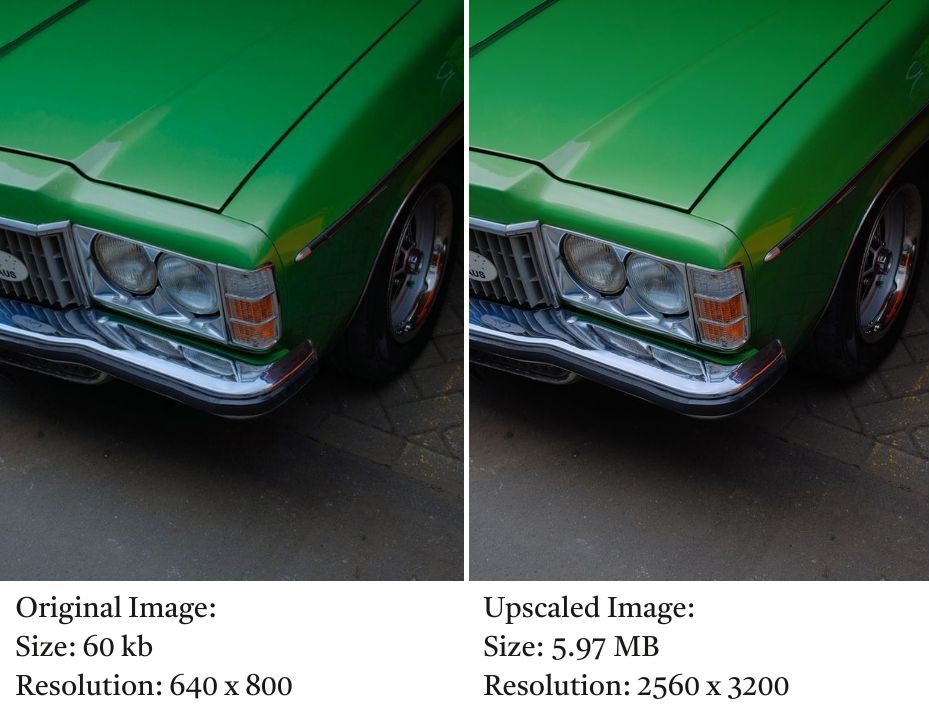
Test 1: A 60Kb Image Upscaled up to 3x level upscaling
For a quick test, I downloaded a car image from Pexels that was only 60 KB and had a resolution of 640 × 800 pixels. I uploaded it to the tool and applied 3x image upscaling.
After processing, the image increased to 2560 × 3200 pixels, with the file size reaching around 5.97 MB. I also zoomed in on the result to check the details and sharpness. The quality was surprisingly good, especially considering the relatively low resolution of the original image, and the output looked suitable for high-quality printing.
Test 2: Upscaled 4X an Actress Image
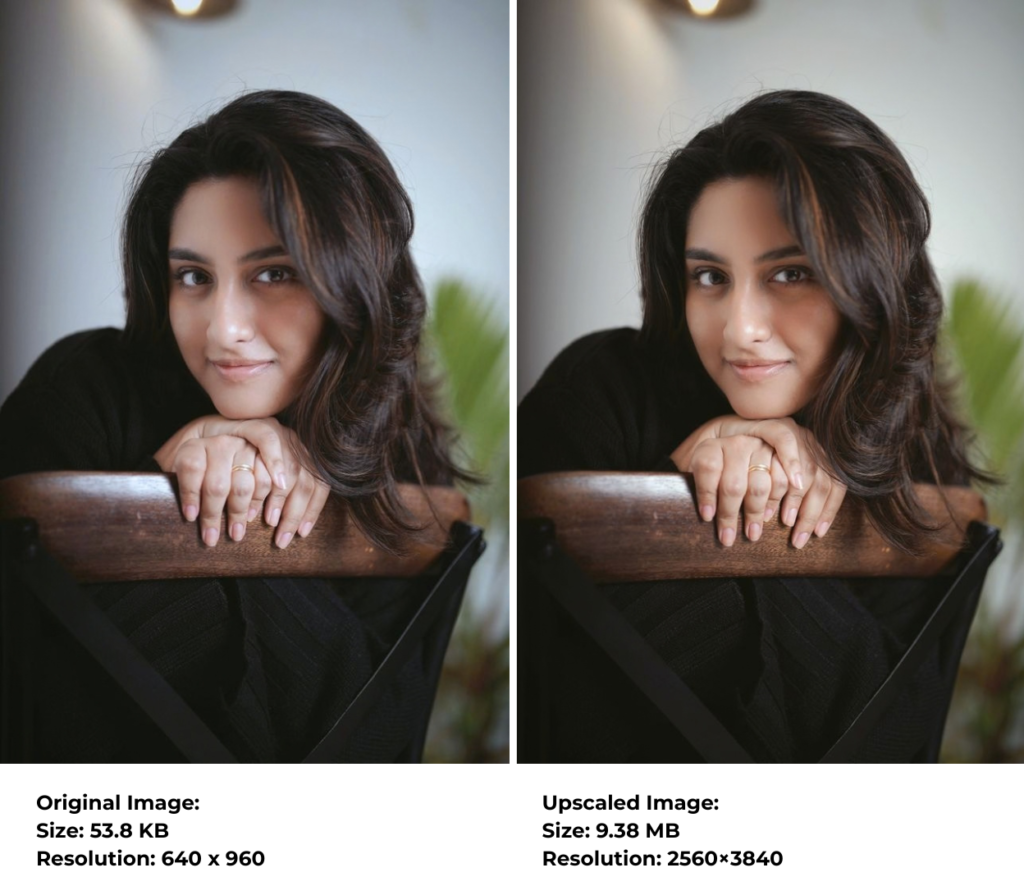
Next, I tried upscaling a photo of a human character, where the face is definitely more important than other details. Here’s how the image looks after upscaling, along with the test results:
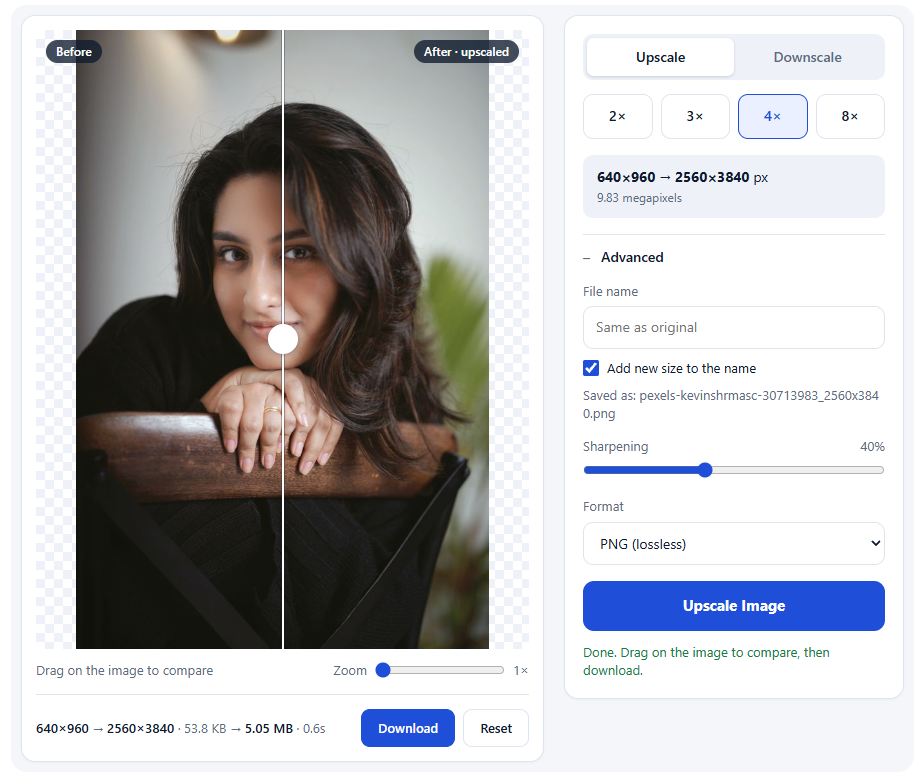
Here are the dashboard details, where I set the image upscaling level to 4×. This helped upscale the image with better quality, improved clarity, and a higher pixel resolution.
Final Thoughts
So, I’ve tried many image upscaling tools, and while most of them offer decent or basic results, very few provide high-quality image upscaling in their free version.
That’s where ImgResizer.io stands out. It aims to keep high-quality image processing free, while also offering fast processing speeds. Compared with many other free tools—and even some paid alternatives—the results are quite impressive, especially when it comes to image quality and processing speed.
