
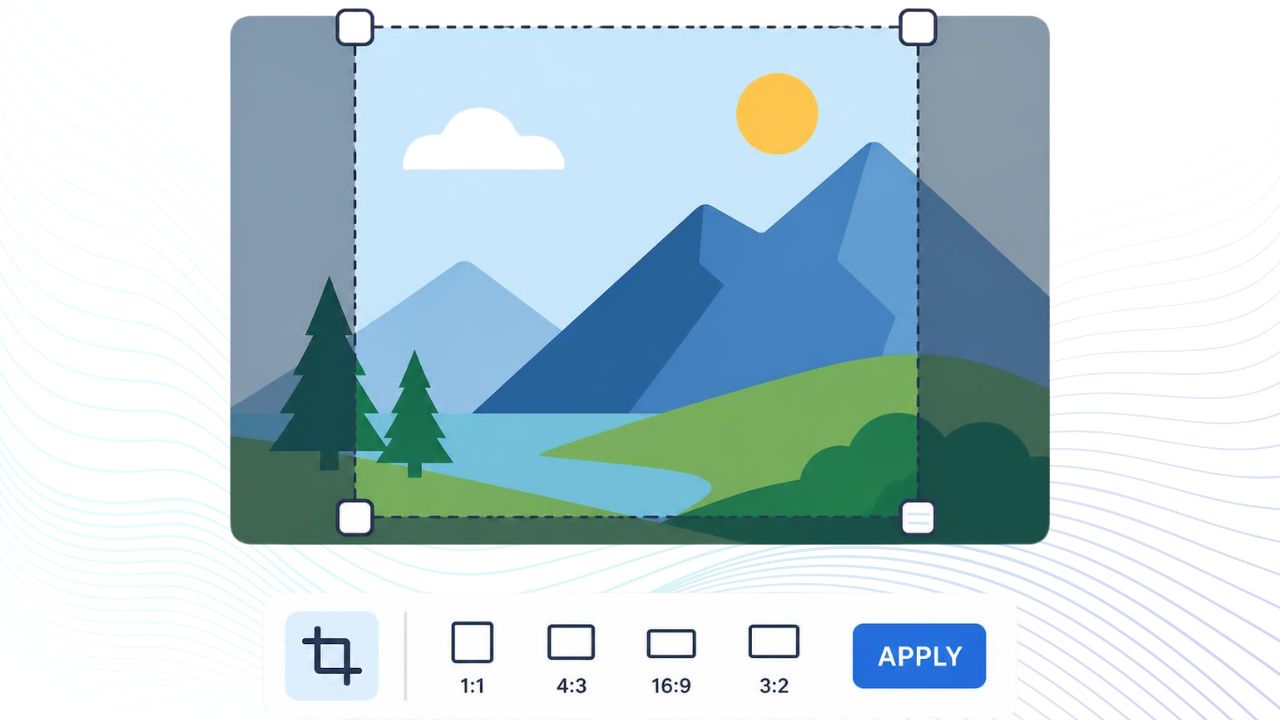
Learn how to crop an image online for free. If your photo is too wide, too tall, or simply too large to upload, you may need to change its dimensions or reduce its file size before submitting it. This is especially common with online forms, applications, websites, and platforms that have specific image requirements.
The problem is that reducing the dimensions or file size can sometimes make the image look blurry or noticeably lower in quality. What if you could crop, resize, and reduce the file size from one place without having to switch between different tools?
That is what imgresizer.io is built for. It brings common image editing tasks together in one simple panel, so you can prepare your image for different size and file requirements without opening a complicated photo editor.
And there is another useful part: the tool can work offline in your browser, so you can edit your images even when you don’t have an active internet connection.
How To Crop an Image Online
With imgresizer.io, the process is simple:
- Open the image cropper.
- Upload your photo.
- Adjust the crop area around the part you want to keep.
- Choose an aspect ratio if you need a specific shape.
- Apply the crop and download your image.
For a normal photo, you can usually finish the whole job in less than a minute.
What Is Image Cropping?
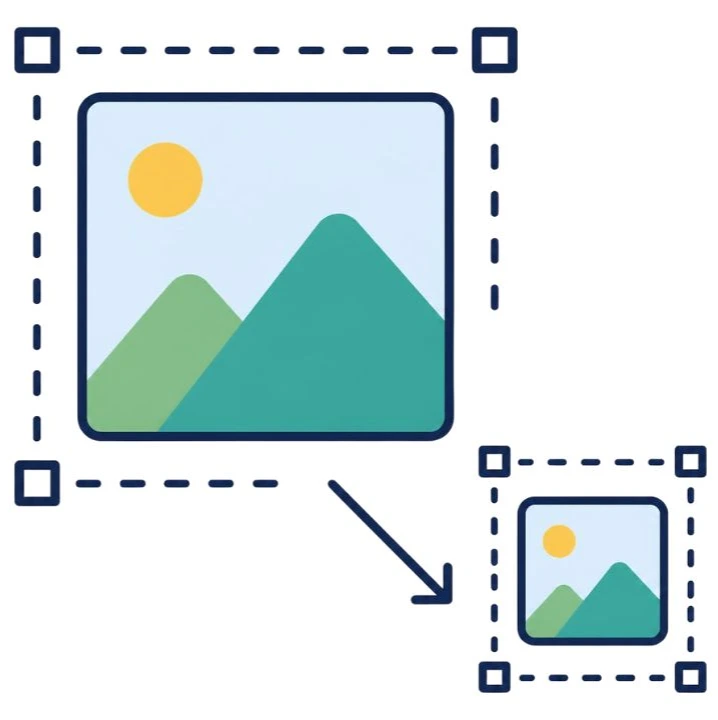
Image cropping means removing unwanted areas from the edges of a photo.
For example, you might have a portrait with too much empty space above the person’s head. Cropping lets you remove that space and make the person more prominent.
You can crop an image to:
- Remove unwanted background
- Improve the composition of a photo
- Turn a landscape photo into a portrait
- Make a square profile picture
- Prepare a product image
- Create a thumbnail
- Fit an image into a website layout
- Meet the requirements of an online form
Cropping changes what is visible in the image. It does not magically add detail to the part you keep.
How to Crop a Photo Properly
- A good crop is more than simply dragging the corners until the image looks smaller.
- First, decide what needs to stay in the picture. Keep important details such as faces, products, text, and logos inside the frame.
- Then look at the edges. If the crop cuts through something important, move the frame and check the composition again.
- If you’re cropping a portrait, for example, don’t let the crop accidentally cut off part of the person’s head or chin. For a product photo, make sure the entire product remains visible if that is important to the listing.
- Take a few seconds to check the result before downloading it. A technically correct crop can still be a poorly framed image.
Crop an Image by Aspect Ratio
Sometimes you don’t just need to remove part of a photo. You need the image to have a particular shape.
That’s where aspect ratio comes in. An aspect ratio describes the relationship between an image’s width and height.
| Dimension | Ratio | Common Use |
|---|---|---|
| 1000x1000px | 1:1 | Square images and profile pictures |
| 800x1000px | 4:5 | Portrait social posts |
| 1500×1000 | 3:2 | Photos and common print sizes |
| 1280x720px | 16:9 | YouTube Banners & Wide Layouts |
| 900x1600px | 9:16 | Stories and vertical video |
If the website or platform you’re uploading to gives you a required ratio, use that rather than guessing. This also gives you control over the composition. Otherwise, the destination platform may crop the image automatically.
Crop an Image to Exact Size
An aspect ratio tells you the shape of an image. Pixel dimensions tell you its actual size. For example, 1000 × 1000 and 500 × 500 are both 1:1 images, but they are not the same size.
If an application asks for an image that is exactly 600 × 800 pixels, you need to meet that pixel requirement rather than simply creating a 3:4 crop. When exact dimensions matter, check the requirements of the destination before editing the image.
Crop or Resize an Image?
Crop vs Resize: These are two different edits. Crop when you want to remove part of the image. Resize when you want to make the entire image smaller or larger.
For example, if your photo contains too much background, crop it. If the composition is already right but the website asks for a smaller file dimension, resize it. Sometimes you need both. In that case, crop first to get the framing right, then resize the result to the required dimensions.
How to Crop an Image Without Losing Quality
Cropping removes pixels from the image, but that does not automatically mean the remaining image will look blurry.
The biggest problem is usually cropping a small section and then enlarging it too much.
For the best result:
- Start with the original, highest resolution photo you have.
- Avoid cropping away most of the image unless you really need to.
- Don’t enlarge a tiny crop to a much larger size.
- Check the final image at its intended display size.
If the original image is already blurry or very small, cropping cannot restore the missing detail.
Crop JPG, PNG, and WebP Images
The file format matters mainly when you’re saving the finished image.
JPG works well for most photographs and usually produces relatively small files.
PNG is useful when you need transparency or want to preserve sharp graphics and text.
WebP can provide a smaller file size while maintaining good visual quality when the destination supports it.
Before uploading an image, check which formats the destination accepts. There is no need to convert a file simply because you want to crop it.
Can You Crop an Image on a Phone?
Yes. You can crop photos from a phone using a browser based image cropper without installing a dedicated editing application.
The process is the same: open the cropper, select your image, position the crop area, and save the result.
For detailed crops, zoom in and check the edges carefully. Small screens can make precise positioning harder than on a desktop.
When Should You Use an Online Image Cropper?
An online image cropper is useful when you need a quick edit and don’t want to open a full photo editing application.
It works especially well for simple jobs such as:
- Cropping a profile photo
- Preparing a product picture
- Making a square image
- Creating a thumbnail
- Removing empty space
- Preparing an image for a website
- Cropping a photo for an online application
For more advanced work such as layers, masks, detailed retouching, or complex graphic design, a full image editor may be more appropriate.
Crop Images Online With imgresizer.io
If all you need is a clean, straightforward crop, you don’t need a complicated editor.
Crop your image with imgresizer.io
Upload the photo, set the crop area, check the framing, and save the result.
If you also need to change the final width or height, resize the cropped image afterward.
frequently Asked Question
How do I crop an image online for free?
Open an online image cropper such as imgresizer.io, upload your photo, adjust the crop area, and download the result. If you need a particular shape, select the appropriate aspect ratio before cropping.
What is the best aspect ratio for an image?
There is no single best aspect ratio. The right one depends on where the image will be used. Common ratios include 1:1 for square images, 4:5 for portrait content, 16:9 for wide content, and 9:16 for vertical content.
Can I crop an image to exact pixels?
Yes, when the image cropper supports exact dimensions. This is useful when a website, application, or design specification requires a particular width and height.
Does cropping reduce image quality?
Cropping removes pixels, but it does not automatically make the remaining area blurry. Quality can become a problem when you crop a very small section and then enlarge it substantially.
What is the difference between cropping and resizing?
Cropping removes part of an image. Resizing changes the dimensions of the whole image while keeping its composition. If you need to remove unwanted content, crop. If you simply need different dimensions, resize.
Can I crop JPG, PNG, or WebP images?
That depends on the image cropper and the formats it supports. JPG, PNG, and WebP are commonly used image formats, but you should check the tool’s current format support before uploading.
Can I crop an image on my phone?
Yes. A browser based image cropper can be used on most modern phones. You can upload the photo, adjust the crop area with touch controls, and save the finished image.
How do I crop a picture into a square?
Choose a 1:1 aspect ratio and position the crop frame around the part of the photo you want to keep. Once cropped, the result will have equal width and height.
More Tool Ideas
- Cropping: Crop Images to the Right Ratio and Dimensions:
With the IMGResizer.io Crop Tool, you can crop an image to the ratio and dimensions you need. It is useful when a website, form, or application requires a specific image size. - Resize Image to a Specific KB:
Need to upload an image under a certain file size? You can resize your image to meet a specific KB limit while keeping the image quality as good as possible. This can be especially useful for government forms and online applications that have strict image size requirements. - PDF Size Compressor:
Need to reduce the size of a PDF before uploading it? The PDF Size Compressor helps you reduce the file size while preserving as much of the original quality as possible.
