
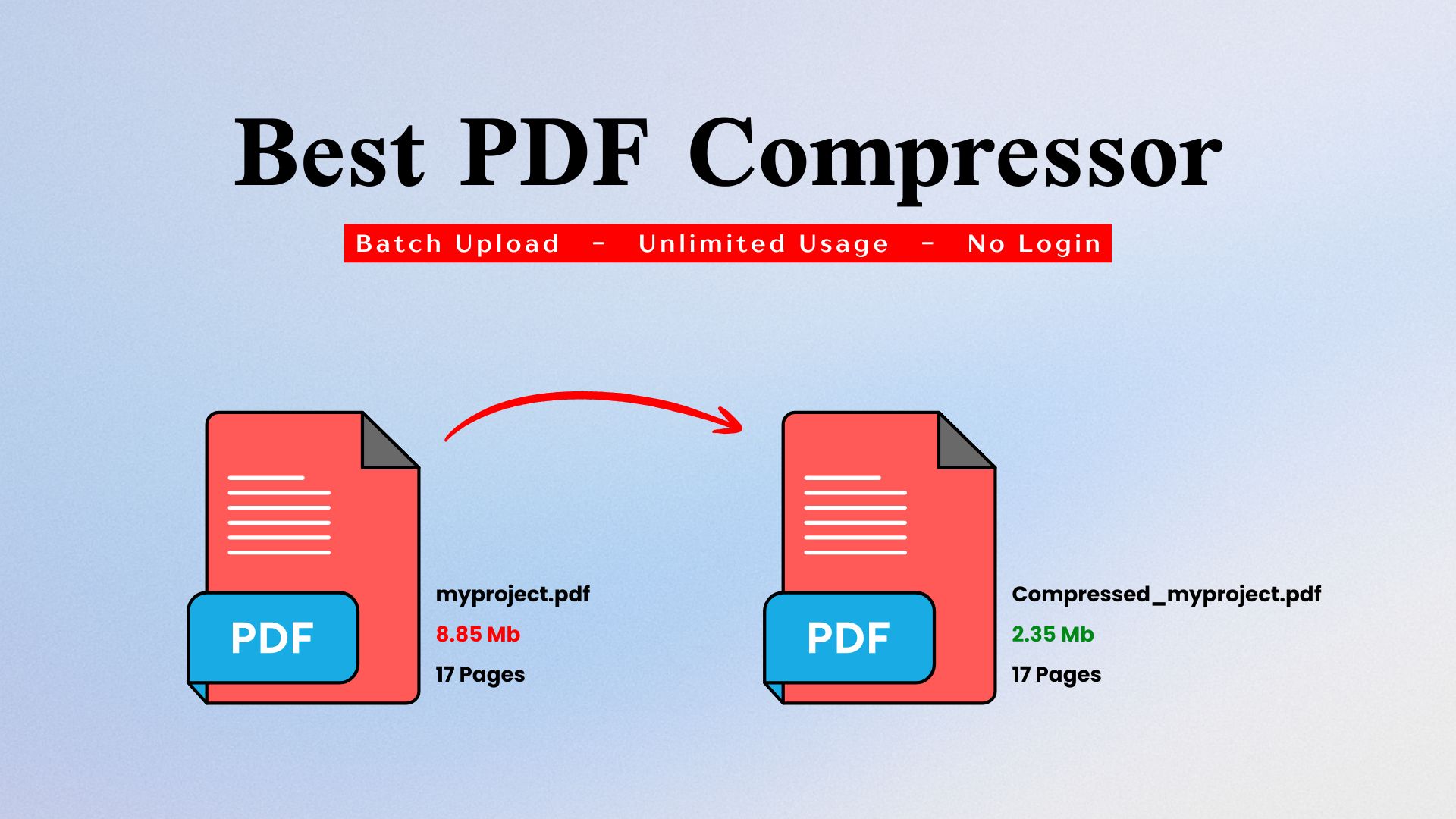
Have you ever tried sending an important project PDF to your boss, but the file was too large and the upload took too long? I’ve faced this too, and it was really frustrating. At that time, I didn’t know I could reduce the PDF size without removing any important information.
Instead, I deleted some less important content just to make the file smaller. Later, I learned that compressing a PDF can reduce its size without removing any part of the document.
During my research, I found many online PDF compressor tools. But some didn’t reduce the file size enough, while others had too many ads and pop-ups that made the experience frustrating.
Then I found the PDF Compressor tool by IMGResizer.io. It is simple and user-friendly. Since it works on the client side, your PDF is compressed directly in your browser without uploading the file to a server.
This makes the process quick and convenient. You can easily reduce your PDF size and share it wherever you need.
Best PDF Compressor Tool?
Today, a PDF can contain more than just a document. It may include important or confidential information, so I’m always careful about using online tools that upload my files to their servers.
That’s why I prefer client-side PDF compressors. Your file stays in your browser instead of being uploaded to a server.
While looking for one, I found the IMGResizer.io PDF Compressor. It is fast, simple to use, and doesn’t require any login or signup.
If you’re looking for the best client-side PDF compressor tools, here’s a quick list of the top 3 options:
- PDF Compressor by IMGResizer: Best Overall Client-Side PDF Compressor Tool Online, offering batch upload so you can compress multiple PDF files at once. It is specifically designed for compressing PDFs, focusing only on reducing PDF file size, and offers unlimited free tries.. Use Tool
- LocalPDF: A browser-based PDF compressor with multiple features like font editing, watermarks, and more, but its free service is limited. Use Tool
- PDF Comp: Another browser-based PDF compressor that claims up to 70% reduction in some PDF files. However, I personally noticed that when compressing large PDFs, it failed more often than it completed successfully. Use Tool
These tools are my first choices, but for different purposes. IMGResizer.io PDF Compressor is my go-to headache-free PDF compressor because you simply add your PDF and compress it. Other tools offer many additional editing features, which can take more time and make the process feel more complicated. So, when I only need to reduce or compress a PDF, I prefer the PDF Compressor by IMGResizer.io. For other PDF editing needs, I use different PDF tools depending on what I need.
IMGResizer.io PDF Compressor Tool vs Others
| Feature | imgresizer.io (PDF Compressor) | pdfcomp.com | localpdf.online |
|---|---|---|---|
| Primary Focus | Free PDF Compression | Free PDF Compression | Broad PDF Workspace (Free & Paid) |
| Can Set Target Size | Yes | No | No |
| Pricing | 100% Free | 100% Free | Free Plan; Pro from $3.99/mo |
| Privacy / Processing | Locally in your browser | Locally in your browser | Local-first processing |
| Batch Upload | Yes — up to 5 PDF files at once | No | No |
| File Limits | Up to 5 files at once | Up to 2 GB per file | Free: 25 pages per document. Pro: Unlimited |
| Best For | One-off compression for size limits | Large files (up to 2GB) | Recurring, complex, or sensitive PDF work |
How to Compress PDF Online for Free?
If your only goal is to compress your PDF and reduce its file size as much as possible without compromising quality, go with the IMGResizer.io PDF Compressor. Here’s how you can compress PDFs online for free, including multiple PDF files at once.
Open the PDF Compressor Tool by IMGResizer.io
First of all, open the tool page. Open Tool
Add PDF Files
You can drag and drop, paste, or add your PDF file by clicking the upload section. You can add up to 5 PDF files at once and compress unlimited files across multiple tries for free.
Set Target Size
Here is total 4 Compression Methods, Which are Balances, Loseless, Maximum and Target Size. You can enter your own choice Target file size in which you want to reduce any larger pdf files
Compress PDF
After setting everything up, simply tap the “Compress PDF” button and boom—your PDF will be reduced to your target size.
Note: Sometimes, to maintain better quality, the output PDF size may be slightly higher or lower than your target size. However, the tool always tries its best to get as close as possible to your target file size during compression.
Download & Use It
Once the compression is complete, you can download your PDFs individually. If you compressed multiple PDFs at once, you can easily download them together in a ZIP file. Now you can download, use, or share your compressed PDFs anywhere you want.
What is the maximum PDF size for email?
Most email services draw the line somewhere between 20 MB and 25 MB for direct PDF attachments. It is not a single universal number, so your exact limit depends on who you are sending through.
Here is how the major providers stack up for standard accounts:
- Gmail: Usually 25 MB for the total email size. However, if you are on a special Enterprise Plus workspace plan, this can go up to 50 MB as of February 2026 .
- Outlook.com: Typically sits at 20 MB, though some sources note a 25 MB cap depending on the specific account type .
- Yahoo Mail and iCloud: Generally stick to the standard 20 MB to 25 MB range .
What PDF size is best for any email?
Honestly, the best size for any email is whatever keeps you comfortably under the limit so the message actually goes through without a fight. In practice, that means aiming for under 10 MB whenever you can.
Here is the simple reasoning. Most providers cut you off around 20 to 25 MB, but that ceiling covers the entire email, not just your PDF. Your text, your signature, and any encoding overhead all eat into that space. So a 22 MB PDF on a 25 MB limit can still bounce back as too large, which is frustrating.
Staying at 10 MB or below gives you a nice safety cushion. It also plays well with the person on the other end. Some workplace email systems are stricter than Gmail or Outlook, and mobile users on slow connections will thank you for not forcing a massive download.
A good rule of thumb:
- Under 5 MB: Perfect. Nobody will ever complain.
- 5 to 10 MB: Totally fine for almost any inbox.
- 10 to 20 MB: Works in many cases but start watching the total email size.
- Over 20 MB: Time to use a cloud link instead of an attachment. If you want one number to remember, go with 10 MB.
It is small enough to sail through nearly every email system and big enough to hold most documents, contracts, and reports without losing quality.
Final Thought
So basically, there are a lot of PDF compressor tools on the market, but most of them are server-based, which means they upload our PDF files to their servers. Among the rest, some have too many advertisements and pop-ups, while others lock important features behind paid plans. There are even very few big and trusted companies that offer both batch upload and target file size options for PDF compression.
That is why I personally prefer using the PDF Compressor by IMGResizer.io. However, if you have any feedback about this content, the tool rankings, or anything else, you can contact us directly through our email or contact page.
