
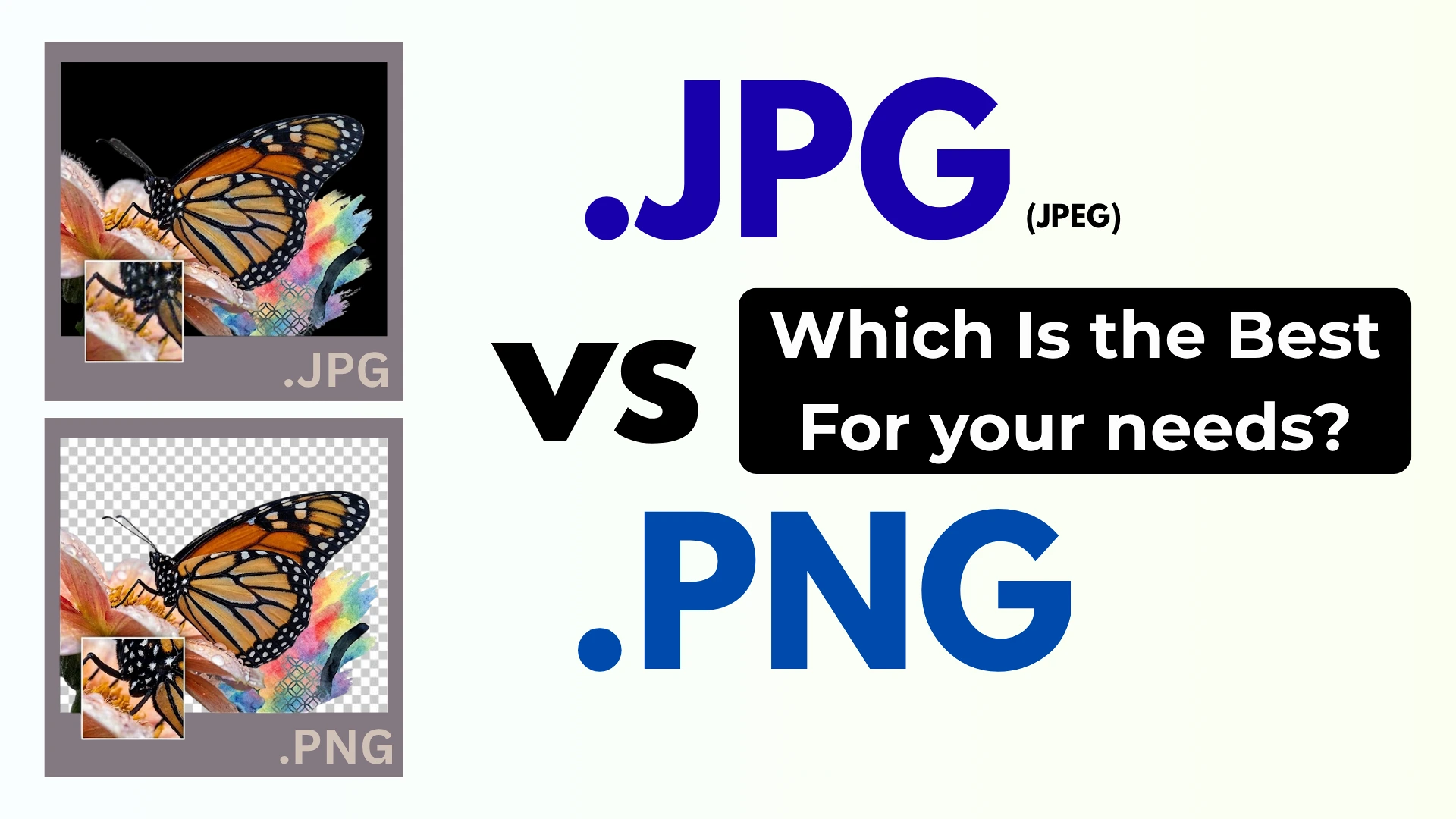
Choosing between PNG vs JPG (JPEG) image formats can feel confusing. Both look similar at first glance, but they work very differently under the surface. The differences in image quality, file size, compression, and transparency matter more than you might think.
Whether you’re uploading photos to your website, creating a logo for your brand, making photos to upload on government websites, or taking screenshots for work, picking the wrong format can slow down your site, waste storage space, or make your images look unprofessional.
This guide will help you understand when to use PNG and when to choose JPG. No fluff, just practical advice you can use right away.
What is JPG?
JPG (or JPEG) stands for Joint Photographic Experts Group. It was created in 1992 to make large photo files smaller so they could be shared more easily.
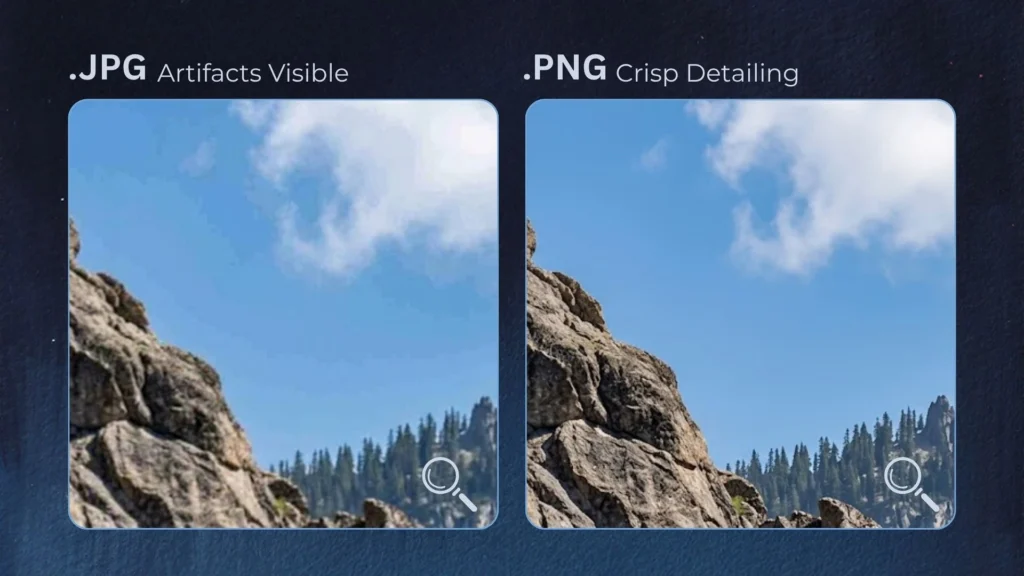
The key thing to know about JPG is that it uses lossy compression. This means when you save an image as a JPG, some visual data is permanently removed to reduce file size. Your eye usually won’t notice the difference at normal quality settings, but that data is gone forever.
Typical JPG compression: A 10MB photo becomes roughly 1MB when saved as a JPG with minimal quality loss.
When to Use JPG?
JPG is your best choice for:
- Photographs—Blog images, product photos, team photos, travel pictures
- Images with smooth gradients—sunsets, skin tones, landscapes
- Decorative images—where slight quality loss isn’t noticeable
- Large image libraries—when storage space and loading speed matter
Why Choose JPG?
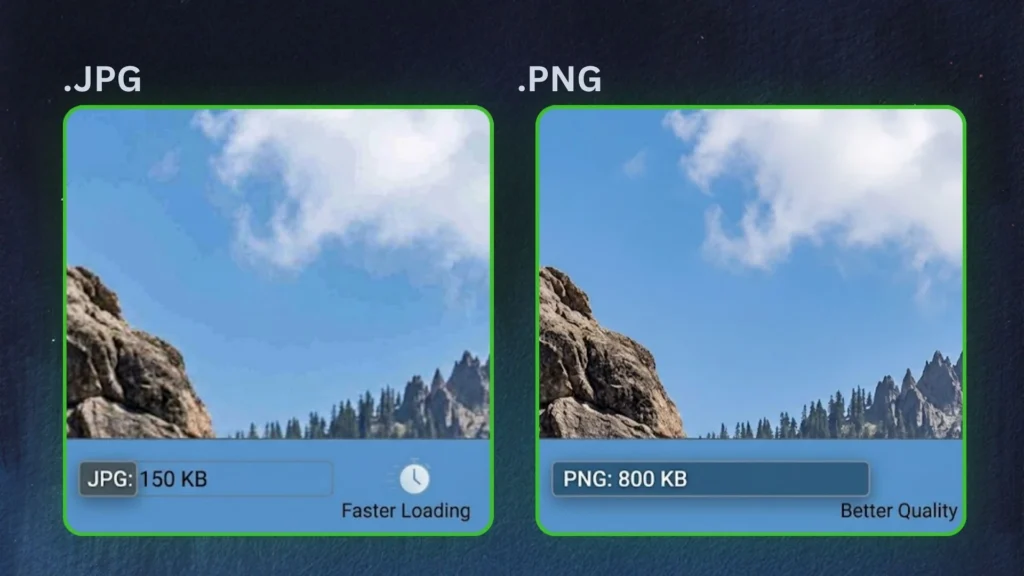
Smaller file sizes—JPG files take up less space on your server and load faster on websites. A typical 1200×800 pixel photo saved as a JPG is about 150-250 KB. The same image as a PNG could be 800 KB to 2 MB or more.
Universal compatibility—Every device, browser, photo viewer, and editing tool supports JPG. It’s the safest choice when you need broad compatibility.
Faster loading—Smaller files mean quicker download times. This matters for website speed, which affects user experience and search rankings.
What is PNG?
PNG stands for Portable Network Graphics. It was created in 1994 as a replacement for GIF. Unlike JPG, PNG uses lossless compression. This means every pixel from the original image is preserved perfectly. When you open a PNG, you get an exact copy of the original file.
When to Use PNG
PNG is your best choice for:
- Logos and brand marks—especially when placed on different colored backgrounds
- Icons and UI elements—buttons, badges, interface graphics
- Images with transparent backgrounds—any design element that needs to sit over other content
- Screenshots – Sharp UI elements and text need PNG’s lossless quality
- Images with text—watermarks, text overlays, labeled diagrams
- Line art and illustrations—technical drawings, charts, flowcharts
Why Choose PNG?
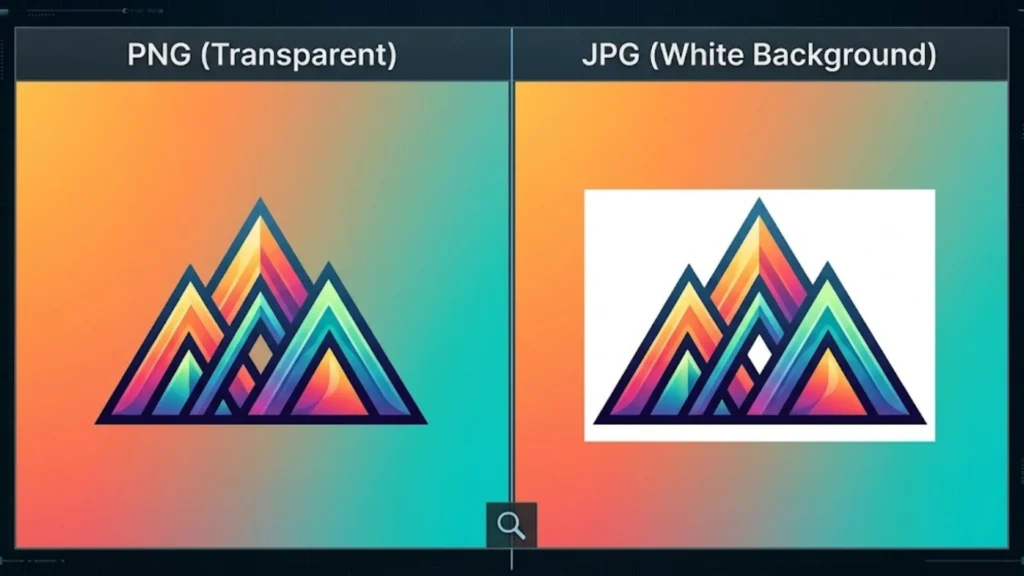
Transparency support—This is PNG’s biggest advantage. It supports full transparency, which means you can have a transparent background around an irregular-shaped object. JPG doesn’t support transparent pixels at all.
Lossless quality – Every time you open and save a PNG, the quality stays the same. There’s no generation loss like with JPG.
Sharp edges—PNG keeps lines crisp and text readable. JPG compression often creates blurry artifacts around text and sharp edges.
16-bit color support—PNG supports 16-bit color, which gives smoother gradients without visible banding. JPG only supports 8-bit color.
Key Differences Between PNG and JPG
Compression: Lossy vs. Lossless
| Feature | JPG | PNG |
|---|---|---|
| Compression type | Lossy | Lossless |
| Quality after saving | Some data is lost permanently. | All data preserved |
| File size | Small | Medium to large |
| Best for | Photographs | Graphics, logos, text |
Transparency
JPG does not support transparency. When you save an image with a transparent background as a JPG, the transparent areas become white (or whatever color you choose).
PNG supports full transparency. This makes it essential for logos, watermarks, and any image that needs to blend with different backgrounds.
File Size Comparison
Here’s a real-world example:
| Image Type | JPG Size | PNG Size |
|---|---|---|
| Photo (1200×800) | 150-250 KB | 800 KB – 2 MB |
| Logo with transparency | Not possible | 20-50 KB |
| Screenshot | 200-300 KB (with artifacts) | 100-150 KB (crisp) |
| Simple graphic with few colors | 50-100 KB | 10-30 KB |
Note: For simple graphics with few colors, PNG can actually be smaller than JPG.
Color Depth
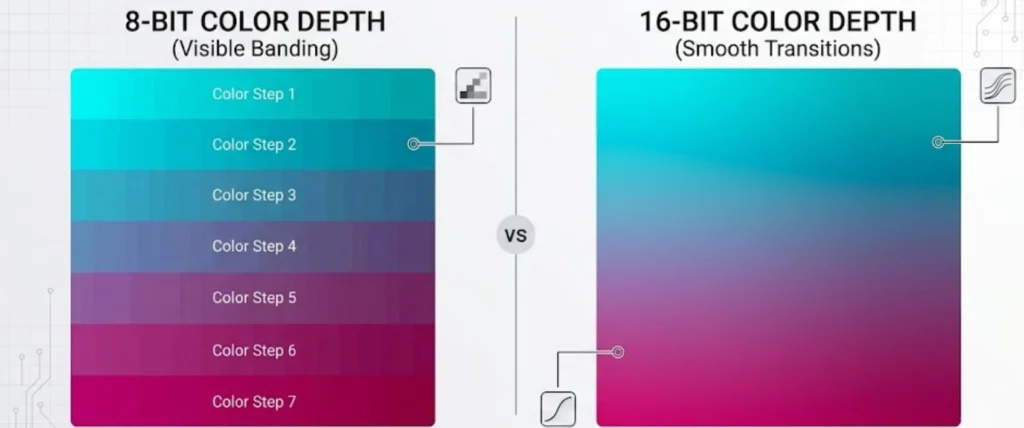
JPG only supports 8-bit color. This means 256 shades per channel.
PNG supports 16-bit color. This gives 65,536 shades per channel, resulting in smoother gradients and more accurate colors.
Quick Decision Guide
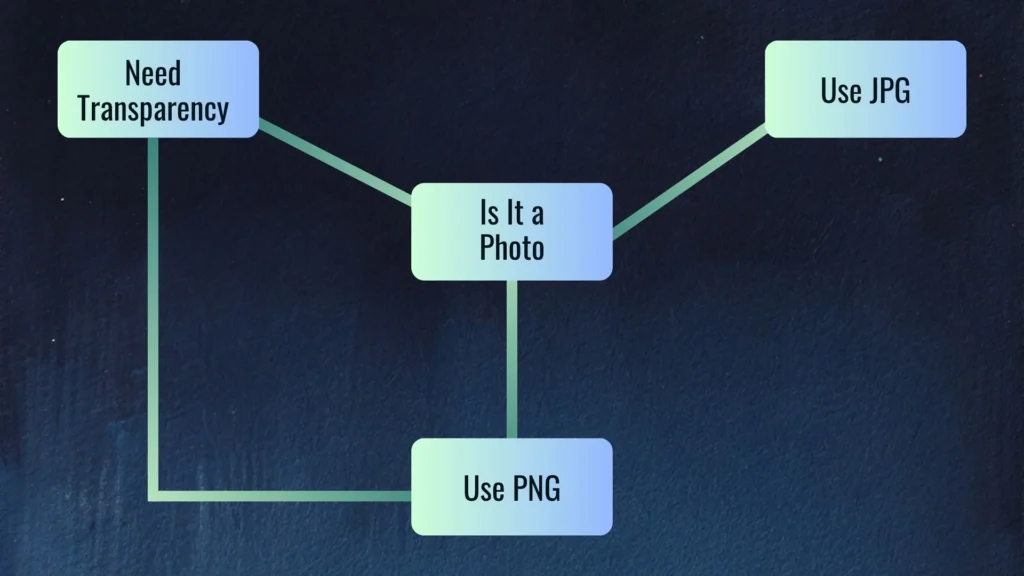
Use JPG When:
- The image is a photograph
- File size matters more than absolute perfection
- The image doesn’t need transparency
- You’re sharing photos online or via email
- The image has smooth color transitions and gradients
Use PNG When:
- The image needs a transparent background
- The image contains text or sharp lines
- It’s a screenshot
- It’s a logo or icon
- You need lossless quality for future editing
- The image has few colors (PNG can be smaller)
Use Cases
Screenshots
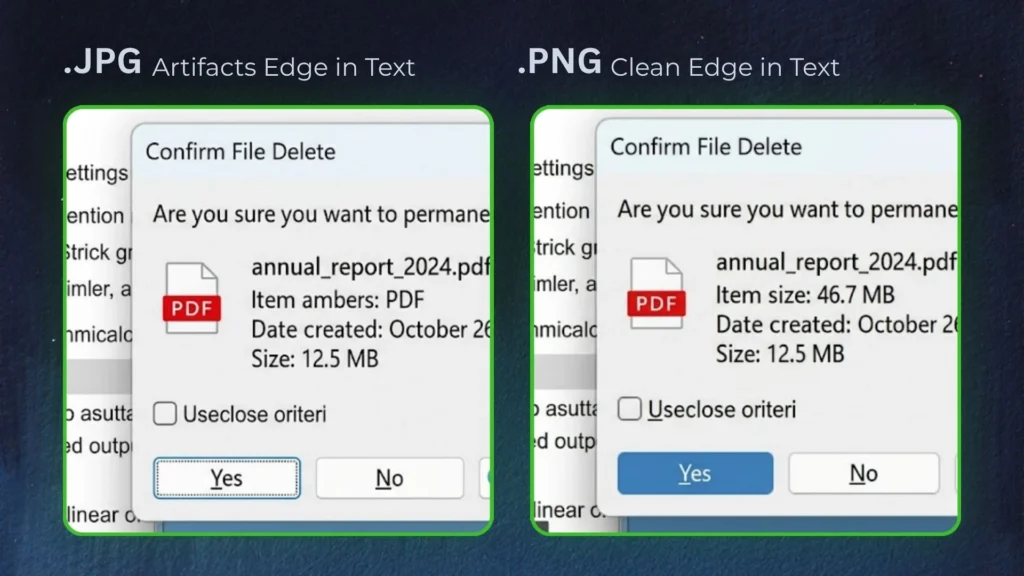
Always use PNG. Screenshots contain sharp UI elements, text, and high-contrast edges. JPG compression creates visible artifacts around text and straight lines, making your screenshots look messy and unprofessional.
Images with Text
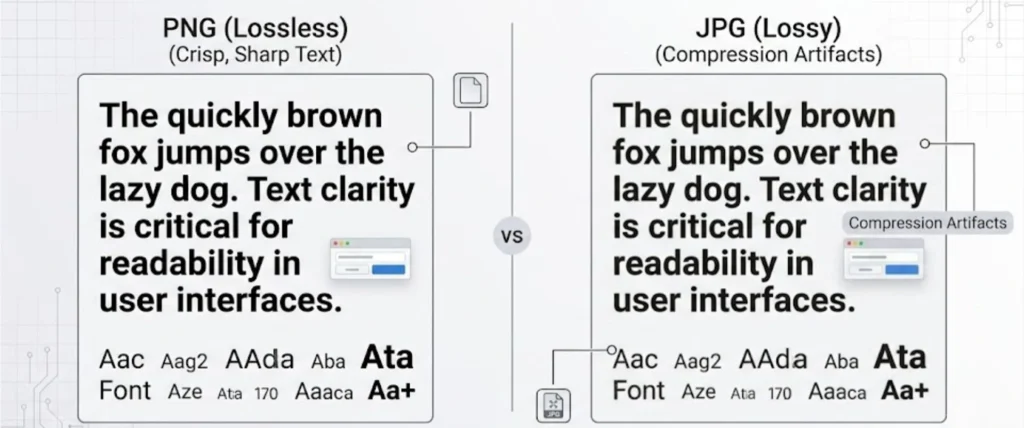
Always use PNG. JPG compression creates noise around text characters, making them harder to read. This looks unprofessional, especially on logos or banners.
Infographics
- Text-heavy infographics with flat shapes → Use PNG
- Illustrated infographics with photos and gradients → Test both and compare
Email Marketing
JPG is usually better for hero images and banners. PNG works for logos and icons where text must be crisp. Watch file size carefully—large PNGs in emails may not load well on mobile.
Printing
PNG gives better quality for printing because it preserves all detail. However, neither PNG nor JPG supports CMYK color, which is preferred for commercial printing. For professional printing, consider TIFF or PDF.
Quality Settings
JPG Quality Recommendations
| Use Case | Quality Setting |
|---|---|
| Hero images and portfolio photos | 85-90% |
| General web photos and blog images | 75-85% |
| Thumbnails | 70-75% |
| Email marketing | 75-80% |
At 80% quality, JPG looks nearly identical to the original but saves significant file size.
PNG Optimization
PNG-8 (limited to 256 colors) can produce much smaller files for simple graphics while maintaining transparency. Use this for icons, simple logos, and UI elements.
Does It Affect SEO?
Page speed is a ranking factor for Google. Large, unoptimized PNG files can slow down your site, which hurts user experience and search rankings.
Format doesn’t directly affect SEO, but file size does. Smaller files = faster loading = better Core Web Vitals = potentially better rankings.
For best SEO results:
- Use JPG for photos
- Use PNG for graphics that need it
- Compress everything before uploading
- Use descriptive file names and alt text
Modern Alternatives
WebP
Google’s WebP format is becoming the new standard. It typically produces:
- 25-35% smaller files than JPG at the same quality
- 60-80% smaller than PNG for the same image
WebP supports both lossy and lossless compression and transparency. It’s supported by 97%+ of browsers.
AVIF
AVIF is even more efficient. It can be 50% smaller than JPG at the same quality. Support is growing, but encoding takes more processing power.
What to Do in 2026
For maximum compatibility, use the <picture> element:
<picture>
  <source srcset="image.webp" type="image/webp">
  <img src="image.jpg" alt="description">
</picture>
Common Myths
Myth: “PNG is always better quality.”
Not for photographs. JPG at 85% quality looks identical to PNG for photos but uses much less space. PNG’s “better quality” comes with a huge file size cost.
Myth: “JPG is always smaller”
Not for simple graphics. PNG with few colors (like a simple logo) can be smaller than JPG because its lossless compression is more efficient with flat color areas.
Myth: “Format affects SEO rankings”
No. Google doesn’t care about file extensions. It cares about page speed, image quality, and proper metadata.
Summary
| Scenario | Best Format |
|---|---|
| Photos on websites | JPG (75-85%) or WebP |
| Product images | JPG (80-90%) or WebP |
| Logos | PNG or WebP |
| Icons | PNG (PNG-8) or WebP |
| Screenshots | PNG |
| Images with text | PNG |
| Transparent backgrounds | PNG |
| Email marketing hero images | JPG (75-80%) |
| Printing | PNG (for quality) or TIFF |
Final Word
There’s no single “best” format. The right choice depends on your image type and how you plan to use it.
Photographs = JPG
Graphics, logos, text, and screenshots = PNG
Use WebP when possible as a modern alternative. Compress everything before uploading. Keep file sizes small for faster loading.
That’s all you need to know. Choose wisely, and your images will look great while loading fast.
